You can use dashboards to visualize and track your system's health, tackle issues, and plan any further steps. Learn to share all that information with your team, customers, or other stakeholders with various import and export options.
Import dashboards
Import a dashboard from its JSON to move it to another account or to modify it at the code level. For example, you can create a custom dashboard by merging two existing ones in a base dashboard's JSON. To get the JSON, download the dashboard.
From one.newrelic.com > All capabilities > Dashboards, use the Import dashboard action and paste the JSON. You choose the account and permissions on import. You can't change the account afterward, but you can change the permissions at any time. Importing requires permission to create dashboards in the target account, and widgets that query accounts you can't access don't display.
Note
An imported dashboard is a copy. It doesn't stay in sync with the original, so later changes apply only to the dashboard you edit.
Export dashboards
Download as JSON, PDF, or PNG
Use the Download dashboard action in the dashboard's ... menu to save a dashboard in one of these formats:
- JSON: Move a dashboard to another account or manage it as code, for example in Terraform. You can download the JSON or copy it to your clipboard. The JSON includes each widget's NRQL query and account IDs, whether or not you export entity GUIDs.
- PDF and PNG: Share a static snapshot of a dashboard in emails, Confluence pages, or Slack, such as last week's sales or the users affected during an incident. Set the width and height in pixels. Both default to 1920 x 1080.
New Relic doesn't support custom visualizations when exporting a dashboard as PDF or PNG via the UI.
Export dashboards via NerdGraph
To export dashboards programmatically with options the UI doesn't offer, such as template variable overrides and entity filters, see NerdGraph tutorial: Export dashboards and charts as files.
Export charts
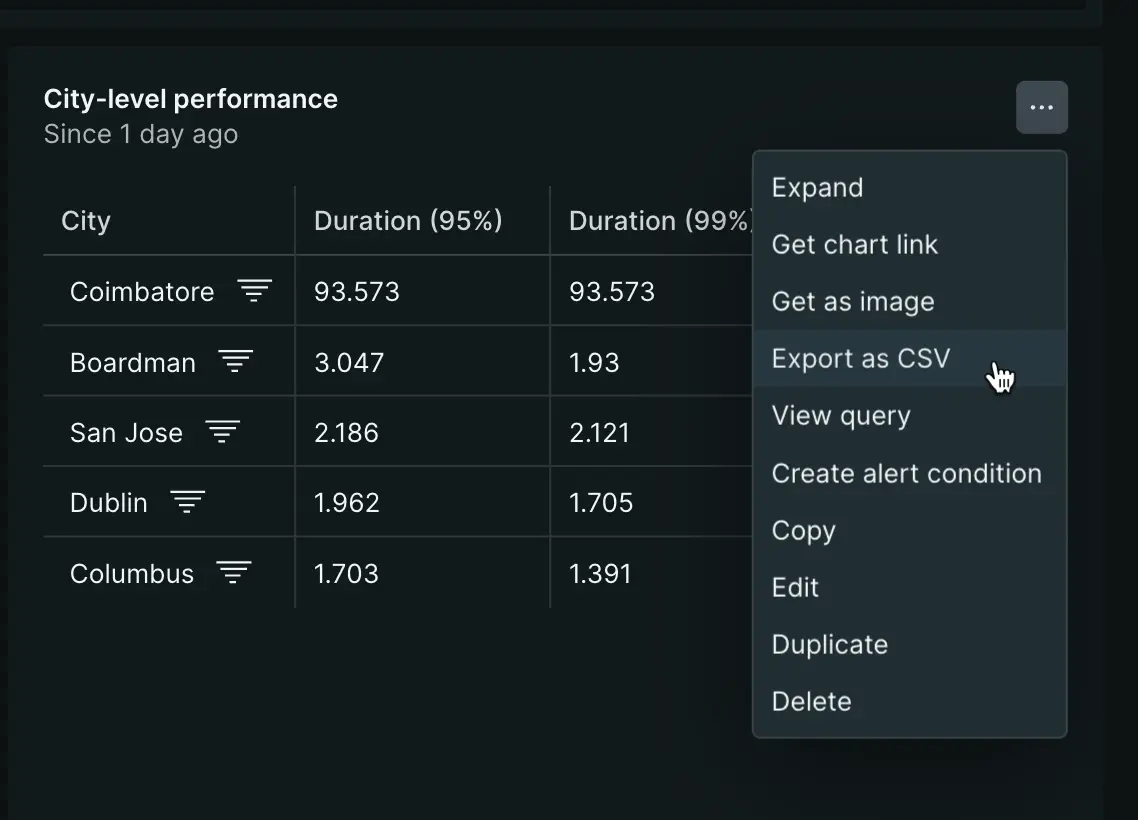
Export as CSV
Export a table chart's data as a CSV file with the Export as CSV chart action.
Get a chart's data as JSON
To get a chart's raw query response as JSON, open View query from the chart's ... menu, run the query, and then set the chart type to JSON. You can copy the response from there. This is the query's output, not the chart's configuration.
Get a chart as an image or link
Share a chart outside the dashboard in one of two ways:
- Get as image: Copy a link to a PNG of the chart. The link expires after 90 days.
- Get chart link: Create a live chart URL that anyone can view without a New Relic account. You need the
Live Url (individual) > Modifypermission. See Share a chart.
To create, list, and revoke chart links with NerdGraph, see NerdGraph tutorial: Create, list, and revoke public sharing chart URLs.
Export charts via NerdGraph
To generate chart images programmatically, see NerdGraph tutorial: Export dashboards and charts as files.
Query and explore charts
For details about what you can do with the charts, see Querying and charting options.