New relic provides a budget of 15 million cardinality per account per day. Under each account you can have multiple metrics, each with a cardinality budget of 100,000. If cardinality usage of a metric approaches the limit, you can manage the cardinality in the following ways:
- Create pruning rules to remove non-critical attributes.
- Adjust the per-metric budget to allow more attributes for a specific metric.
重要
You can also increase the cardinality budget of your account up to 200 million depending on your data needs. This option is only available with the Advanced compute add-on as a part of the Compute pricing model. Advanced CCUs are consumed for the additional cardinality used beyond the default budget.
Cardinality warnings
When your account or a specific metric reaches its cardinality budget, New Relic pauses the pre-computed aggregates for that account or metric. This means the aggregated numbers your charts and dashboards normally show may be incomplete for the affected time window — even though your raw data is still being ingested and stored.
To make it clear when this is happening, queries against affected data return a cardinality warning on chart widgets, dashboard tiles, and the NRQL results panel. The warning tells you which account or metric is affected, when the pause started, and links to the Cardinality Management UI where you can remediate.
Every variant contains two links. The inline Cardinality Management UI link opens the account's Cardinality Management UI landing page, where you can inspect cardinality across the account's metrics and take remediation action. The Please see the docs for more information link opens this documentation page.
What the warning does not mean
- Your raw data is not lost. New Relic still stores the raw data points you sent and lets you query them directly — see Query raw data while you remediate below.
- Your query is not broken. The same query keeps working. Only the pre-aggregated results are incomplete for the time window when the cardinality limit was active.
- Nothing is wrong with New Relic. The warning is New Relic telling you your account is doing exactly what it's supposed to do when New Relic enforces a cardinality limit.
Query raw data while you remediate
While you work on bringing cardinality back under budget, you can retrieve exact values from the underlying raw data by adding the RAW keyword to your NRQL query. Aggregation limits apply only to pre-computed rollups — New Relic continues to ingest and store raw data regardless of cardinality limits.
Example:
FROM Metric SELECT count(*) RAW WHERE metricName = 'your.metric' SINCE 1 day ago重要
Raw metric data has stricter query limits than aggregated data:
- Maximum query window: 2 days. Each
RAWquery can span at most a 2-day time range. - Maximum lookback: 2 weeks. You can query any 2-day window within the last 2 weeks. Data older than 2 weeks cannot be retrieved with
RAW.
Raw queries also scan more data than aggregate queries and take longer to complete. Use RAW to spot-check specific values during remediation — it is not a substitute for a dashboard or a long-running query. The lasting fix is to bring cardinality back under budget so aggregation resumes; see Create pruning rules and Adjust per-metric budget below.
Create pruning rules
A common method to maintain account cardinality within its budget is to implement pruning rules for non-critical attributes, which removes unnecessary data. To create pruning rules:
Ensure you have the
Manage pruning rules: modifypermission. If you don't have this permission, reach out to your Authentication Domain Manager.Navigate to to one.newrelic.com > (click your user name) > Administration > Cardinality Management.
From the Metrics table, select the metric in which you want to create a pruning rule. The Cardinality Management page of the metric opens.
Go to the Attributes table and select the attributes you want to prune.

Click Create pruning rule. A pop-up appears, providing details on how the pruning rule impacts the metric's cardinality.
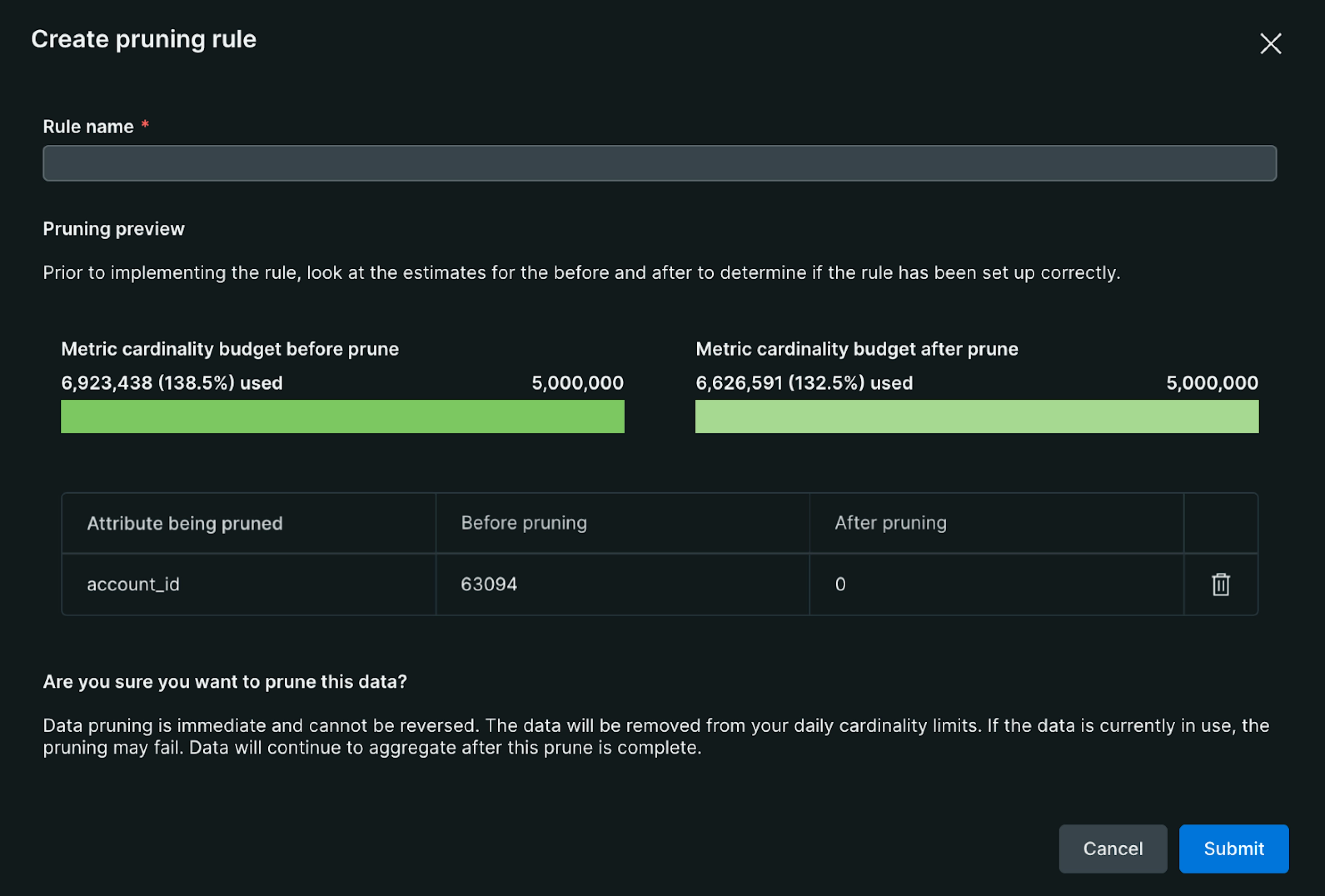
Enter a rule name or description.
Click Submit.
注意
Pruning rules take effect immediately. Ensure you want to prune the data before creating a rule. You can delete a pruning rule after creating it, but the rule may prune some data before you remove it.
Adjust per-metric budget
When all attributes of a specific metric are crucial and you approach your cardinality budget, you can adjust the per-metric budget to meet your needs. Typically, metrics have a default maximum cardinality of 100,000, but you can increase this up to 1 million per metric.
ヒント
Your account's overall cardinality budget remains unchanged. Therefore, setting all metric budgets to 1 million without careful consideration could quickly exhaust your account's cardinality capacity.
To adjust the per-metric budget:
- Ensure you have the
Manage metric cardinality: modifypermission. If you don't have this permission, reach out to your Authentication Domain Manager. - Navigate to to one.newrelic.com > (click your user name) > Administration > Cardinality Management.
- Select the metric for which you want to adjust the budget. The Cardinality Management page of the metric opens.
- Click Adjust metric budget.
- Update the budget to meet your needs. Make sure, it is less than or equal to 1 million.
Adjust additional account cardinality budget
While the default cardinality budget of 15 million is sufficient for most users, you may require a higher budget to accommodate your data needs. While you set an upper limit, you are only charged for the aggregates you generate above the 15 million default cardinality budget, up to the new limit you've set. Currently you can increase the cardinality budget of your account up to 200 million. If you need a higher budget, create a support ticket.
Prerequisites
To adjust the cardinality budget of your account, you must have:
Subscribed to the Advanced compute add-on.
Manage account cardinality: modifyandCustomer limits management: modifypermissions. Reach out to your Authentication Domain Manager to add these permissions to your custom role.Steps
To adjust the cardinality budget of your account, perform the following steps. The adjustment may take 15 to 20 minutes to take effect.
From the Cardinality Management page, click Manage account cardinality.
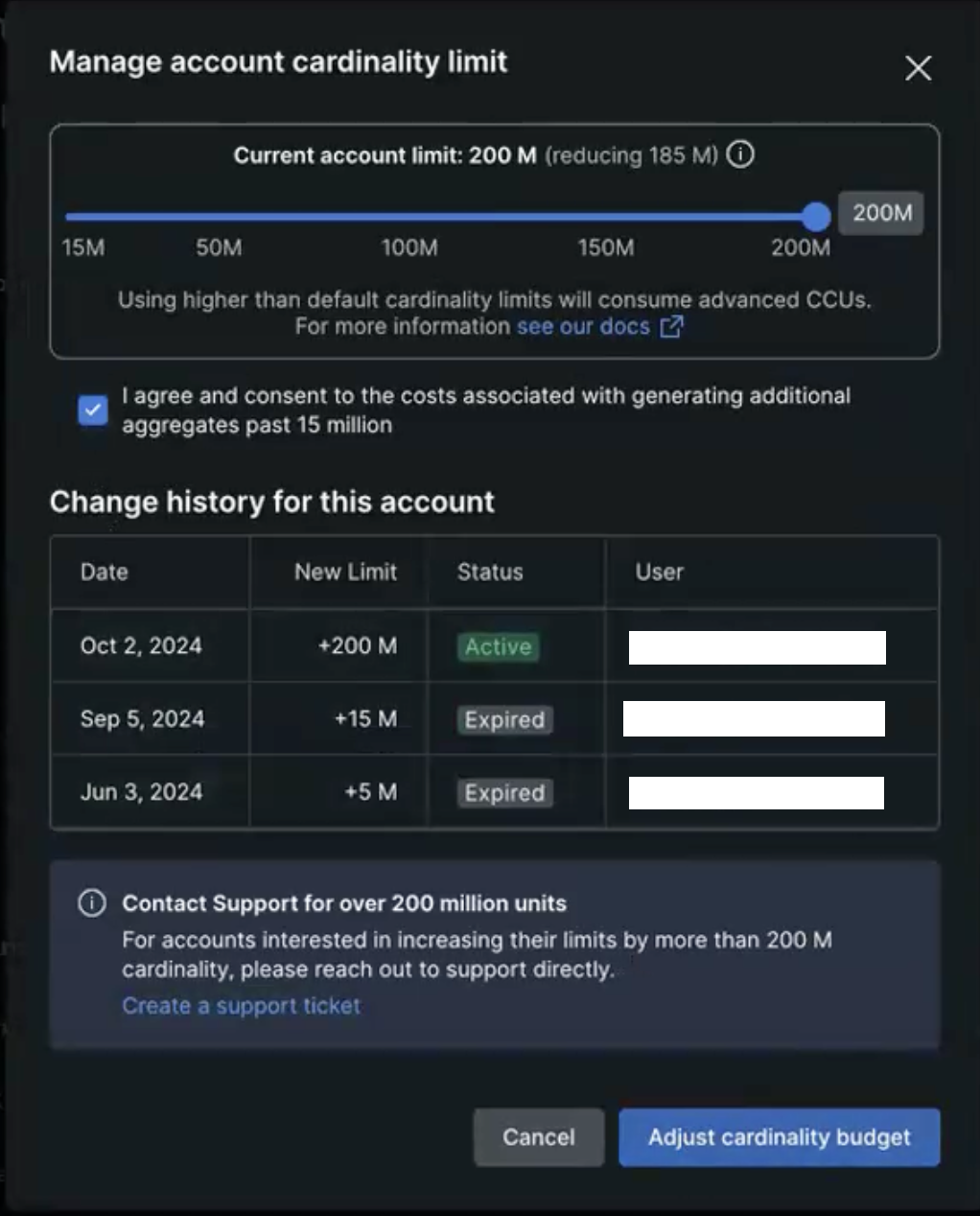
From the Manage account cardinality limit pop-up:
- Adjust the slider to set the new cardinality budget for your account. The maximum limit is 200 million.
- Tick the checkbox to agree to and consent to the associated cost of the additional cardinality ingestion.
- Click Adjust cardinality budget to apply the changes.
ヒント
From the Manage account cardinality limit pop-up, you can view the change history to track when and by which user the account cardinality was adjusted.
Related topics
Monitor cardinality
Learn how to monitor cardinality usage.
Understand and query high cardinality metrics
Understand the concept of cardinality and learn how to query and analyze high cardinality metrics using NRQL.
Access management
As a Authentication Domain Manager, learn how to manage cardinality related access for users.