User privacy is a critical consideration when recording session replays. Although default settings are designed to protect sensitive information, you may need to adjust privacy configurations to meet specific needs. This section explains how to mask, block, or ignore certain data to comply with privacy standards while maintaining the functionality of session replays.
By default, all text and inputs are replaced with asterisks on the browser agent end before the data is transmitted to New Relic. Here's an example of how a replay looks with default privacy:
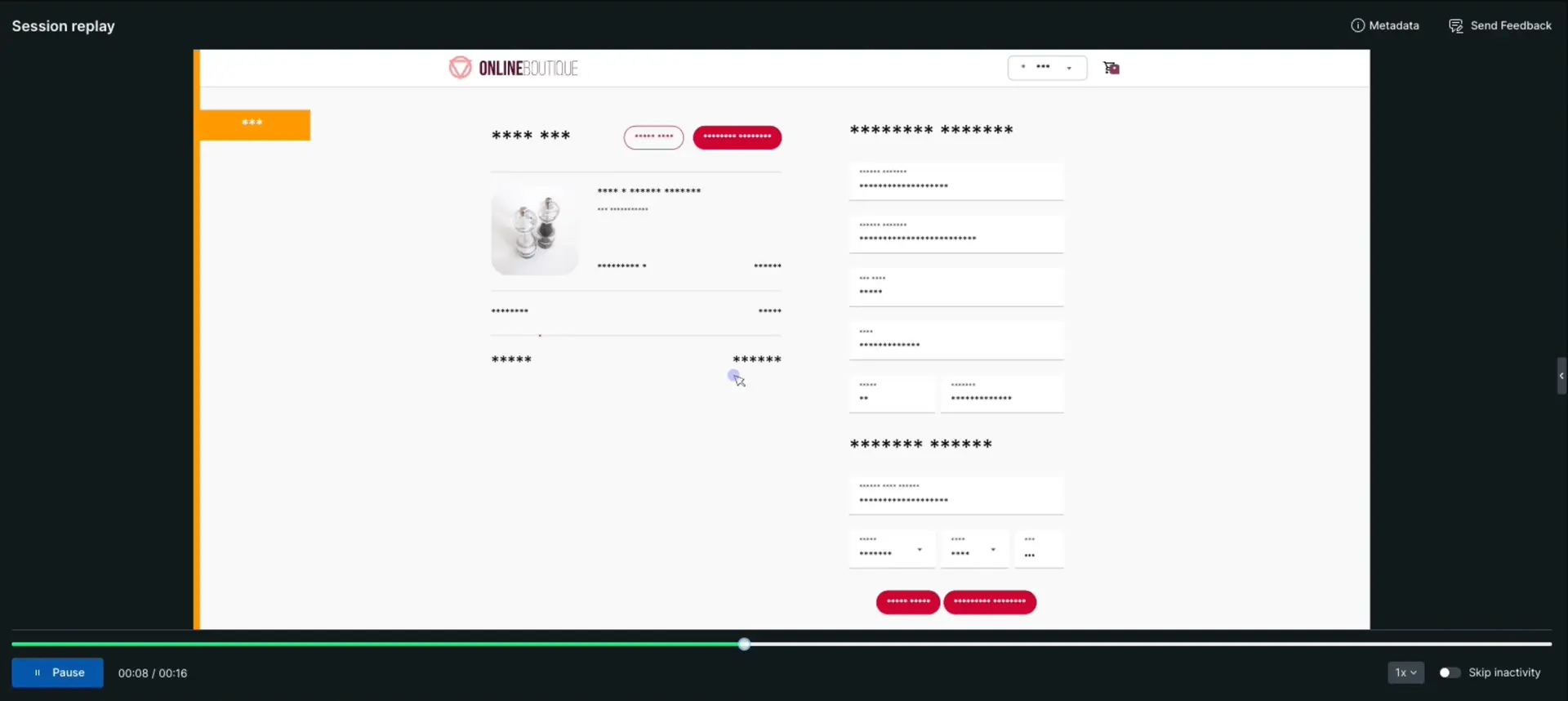
If this setting is appropriate, move on to the next step.
If you need to customize what content or user input is captured, you have options to mask, block, or ignore specific classes and attributes of content or user input. Make sure to check with your privacy team before changing the privacy settings.
Importante
To apply updates made in the New Relic platform for Privacy settings, you must update your browser agent configuration:
Copy/paste snippet or NPM: Redeploy your application to update the agent configuration.
Server-side injection: Restart your application server so the agent uses the updated settings.
Privacy setting types
Session Replay offers two privacy modes in your Application settings:
Default privacy settings (recommended): This mode masks all page content by replacing all text and inputs with asterisks (*)
Custom privacy settings: This mode provides granular control over two distinct areas:
Text-masking and blocking: Controls static text, labels, buttons, and general page content. You manage these using the Mask selectors and Block selectors fields.
User input masking: Controls interactive form elements. You manage these using checkboxes for specific input types, such as text, email, numbers, and dates.
Importante
Clearing all User input masking checkboxes only unmasks form inputs. Your static text (such as labels and buttons) remains masked unless you also configure the Mask selectors field.
Mask specific PII
To display all static text (such as labels, buttons, and headings) and only mask specific sensitive user inputs (such as credit card numbers or SSNs), follow these steps:
Go to one.newrelic.com > All Capabilities > Browser.
Select your browser app.
In the left-hand menu, click Application settings.
On the Privacy settings section, select Custom privacy settings.
In the Text-masking and blocking section, clear the Mask selectors and Block selectors fields. This will unmask all static text on your site, such as labels and buttons.
In the User input masking section:
- Clear all checkboxes to remove masking from all user input fields.
- Select the checkboxes for the specific input types you want to mask. This will ensure that only those specific user inputs are masked while all other inputs remain visible.
Redeploy your app to apply the changes.
After you redeploy, all static text displays normally while only your specifically marked elements stay masked. For additional information:
- To hide user-input details, refer to mask sensitive text section
- To unhide static-text, refer to unmask static text section
- To ignore user-input content, refer to ignore user input section
Manage cross-origin CSS for session replays
Cross-origin CSS settings allow you to control whether CSS assets are fetched from remote domains during session replay initialization. This is crucial for ensuring that replays accurately reflect your website's styling. You can manage cross-origin CSS access either through the New Relic platform's or by manually updating your HTML code.
Sugerencia
Enabling this feature may lead to increased performance costs, network errors, or Content Security Policy (CSP) issues. It is recommended to test this setting in a low-risk environment before deploying it widely.
You can manage cross-origin CSS using one of following two ways:
Using New Relic platform
By default, the Fetch cross-origin CSS when session replay starts option is enabled for session replays in the New Relic platform. You can change this setting from the Application settings page by enabling or disabling the toggle for Fetch cross-origin CSS when session replay starts option.
Adding anonymous attribute to your HTML file
Add the crossorigin="anonymous" attribute to your <link rel="stylesheet"> elements in your HTML code. This attribute instructs the browser to allow cross-origin access for those specific CSS files, allowing our browser agent to record and integrate the styling information.
For example:
<link rel="stylesheet" href="assets.yoursite.com/styles.css" crossorigin="anonymous"/>Mask sensitive text
You can mask sensitive text, which means the text will be replaced with asterisks (*). For example, you can mask a user's account ID that shows in a URL.
To specify which input should be masked, you have a few options:
On the Application settings page, add your own CSS selectors or check the masking boxes. Note that using mask selectors won't mask user input, so if you need to hide user input, we recommend using block selectors.
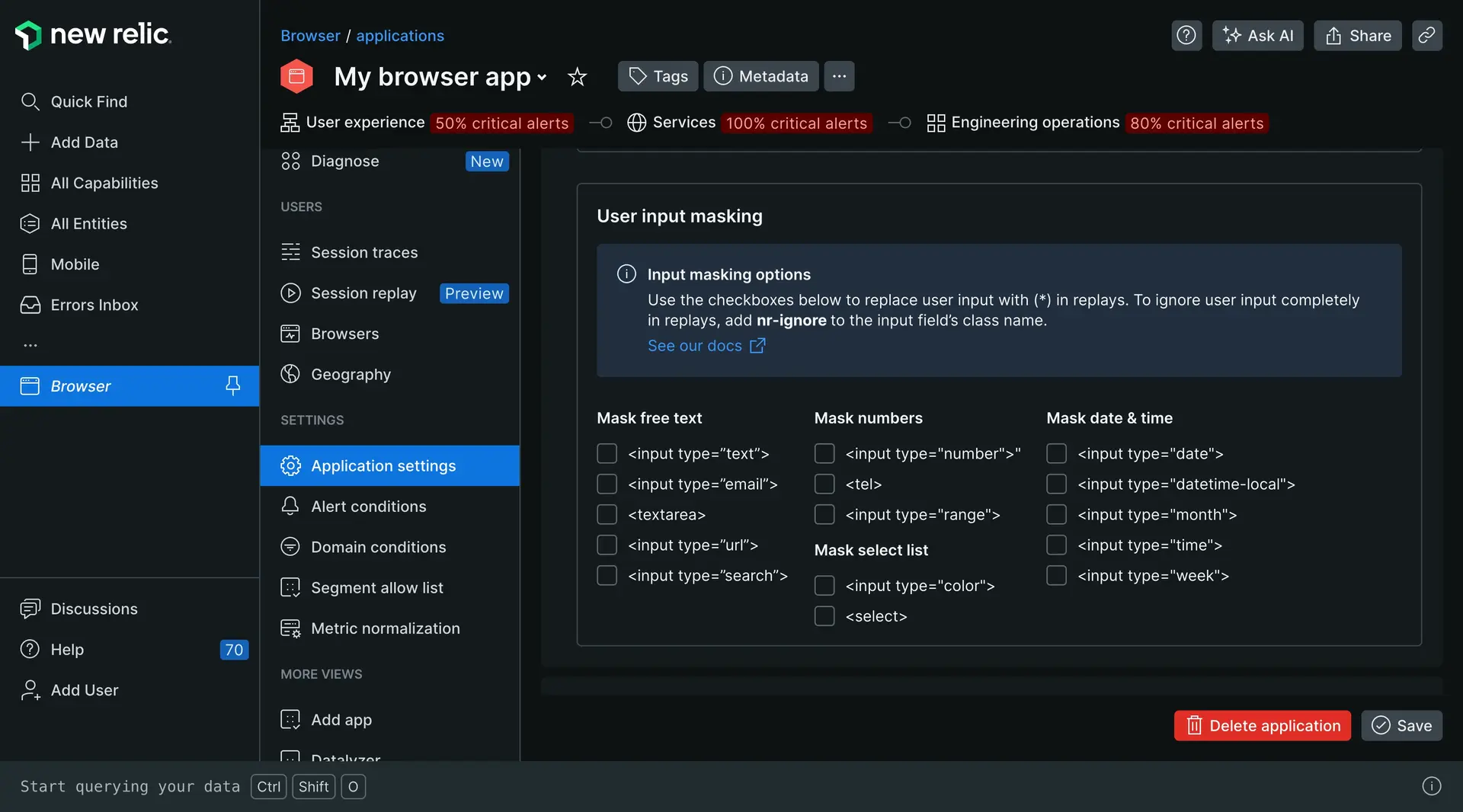
Add our CSS class
nr-maskor attributedata-nr-maskto your webpage HTML.For example, to mask an account ID from showing in the URL, add
nr-maskto the<div>containing the account ID:<div>Account ID: <span class="nr-mask">99881123</span></div>These options use an asterisk (*) to mask all text in that element, hiding the actual text but revealing the number of characters entered. However, asterisks aren't valid numbers, so masking number type-specific fields such as telephone or credit card numbers will result in a blank field in a replay.
Unmask static text
By default, all static text is masked when you use recommended settings. If you want to explicitly unmask specific static text elements, you can add the nr-unmask class or data-nr-unmask attribute to that specific element. This is useful when you want to keep global masking enabled but need certain elements to remain visible.
Sugerencia
You must use browser agent version 1.256.0 or higher to use the nr-unmask and data-nr-unmask selectors.
To unmask specific text elements, use one of the following options:
In the New Relic platform: On the Application settings page, add CSS selectors to the Mask selectors field. To unmask all static text, clear this field.
In your code: Add the
nr-unmaskCSS class ordata-nr-unmaskattribute to your HTML elements.For example, to display a product name while other text remains masked using:
An inline CSS class:
<p>Product Name: <span class="nr-unmask">Premium Widget</span></p>An inline data attribute:
<p>Product Name: <span data-nr-unmask>Premium Widget</span></p>
Block site content
You can block entire sections of content on your site, which means the section will appear as an empty placeholder in session replay. For example, if you have an image on your About Us webpage and don't need it captured, you could block the class containing the image.
To block specific classes or attributes, you have a few options:
On the Application settings page, add your CSS selectors in the *Block selectors field.
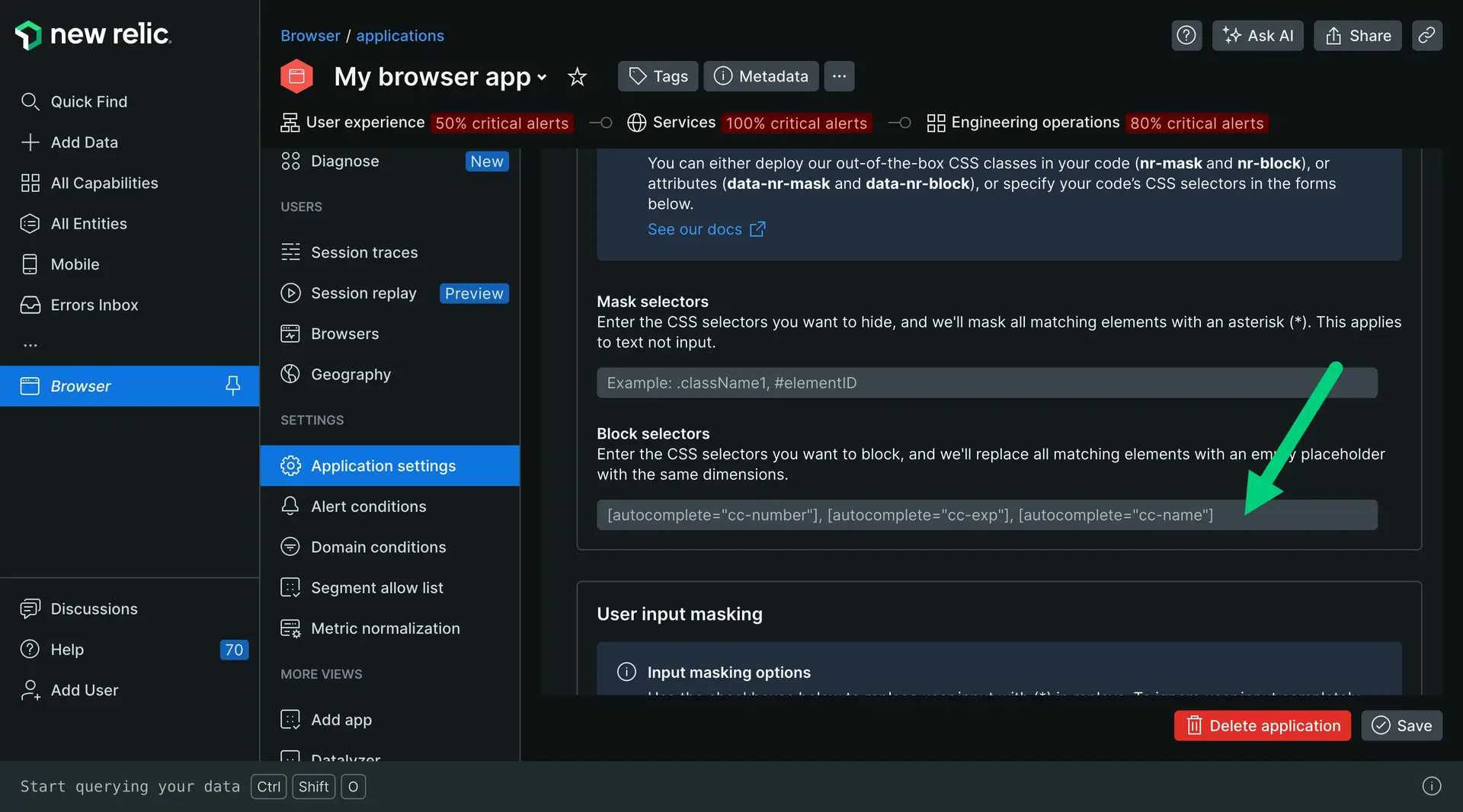
Manually add our CSS class
nr-blockor attributedata-nr-blockto your webpage HTML. For example, if you wanted to block irrelevant text and images from session replay, addnr-blockto<div class>:<html><head><title>Sample image and text</title></head><body><div class="image-text-container nr-block"><img src="https://example.com/image.png" alt="Image description" /></div></body></html>Blocking content also reduces the amount of data captured, since blocked elements and their children are excluded from the recording entirely. This makes it useful for high-churn decorative elements, such as animations or carousels, in addition to privacy-sensitive content. See Optimize session replay data volume for details.
Ignore user input
You can ignore changes to a user input field, which means the input field will still be displayed in the replay, but you won't display changes to the value. For example, you could ignore the class containing the email address or credit card fields. Password input fields are always masked.
To ignore input, add the CSS class nr-ignore to the input field’s class name. For example, if you want to ignore sensitive information on a billing page, add class="nr-ignore" to <input type>:
<div class="sensitive-information"> <h2>Sensitive Information</h2> <p> Credit card number: <input type="number" class="nr-ignore" id="creditCardNumber" /> </p> <p> Expiration date: <input type="number" class="nr-ignore" id="expirationDate" /> </p> <p>CVV code: <input type="number" class="nr-ignore" id="cvvCode" /></p></div>Ignoring a high-frequency input field also reduces the number of mutation events captured for it, which can help if a field's value changes often but the value itself doesn't matter for replay. See Optimize session replay data volume for details.