팁
This page applies to both Standard workloads and Intelligent workloads. Status configuration works the same way for both types.
You can configure your workload status using three methods:
- Static: Manually set a fixed status for maintenance windows or other scenarios where you want to communicate a specific workload state
- Automatic: Status is calculated from rules you configure to determine the status of each entity group and the overall workload
- Alert policy and conditions: Set up custom policies and conditions to determine workload health status based on alert states
To manage workload status settings:
- Navigate to your workload
- In the left sidebar under SETTINGS, click Configure health status
- The Workload status setup page will open, showing the three setup method options
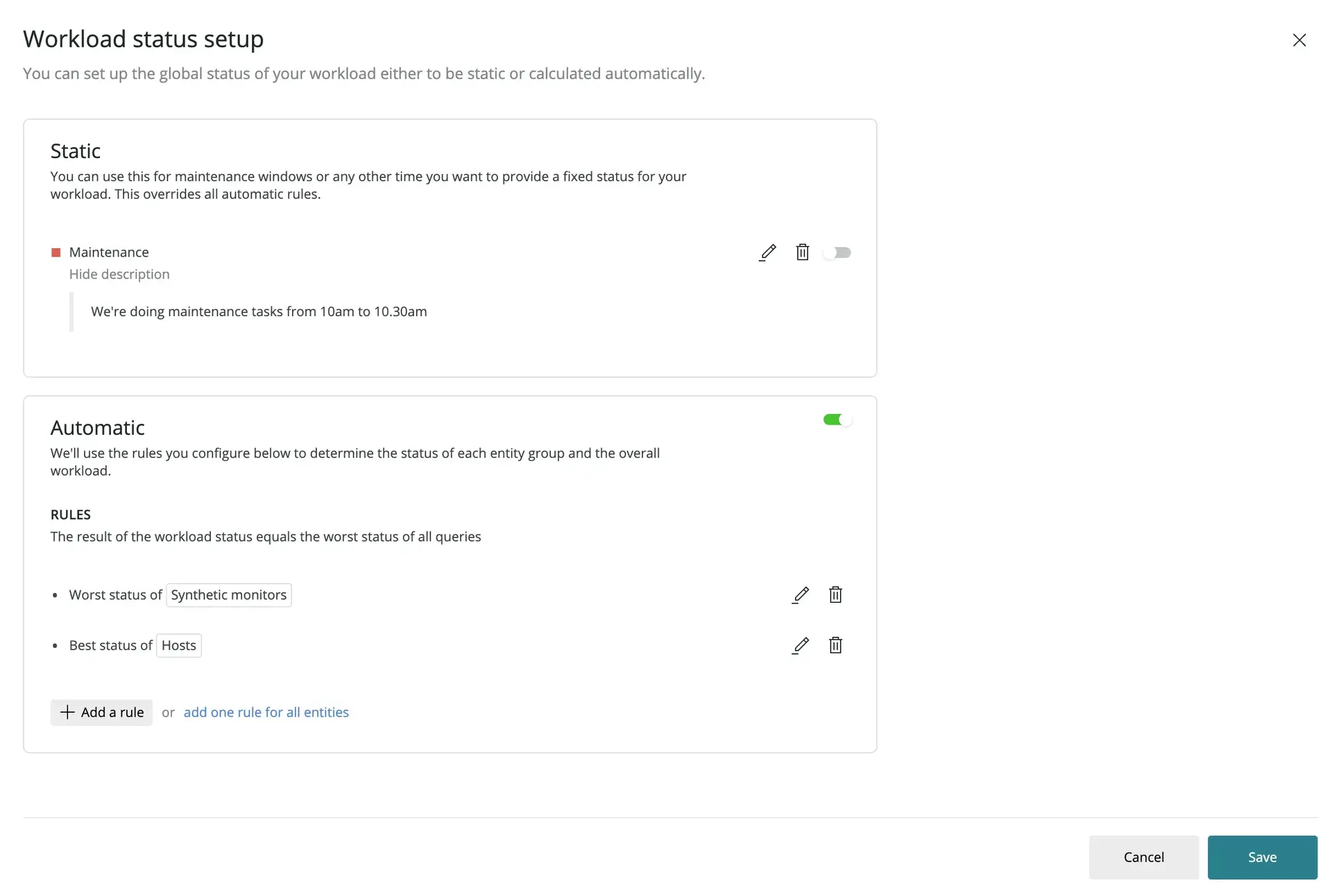
Configure the automatic workload status
Automatic status calculation uses the status of each entity in your workload to determine a single, overall workload status value based on rules you define.
Not all entities in a workload are equally important from a performance, errors, or availability perspective:
- You might want your workload to show as disrupted if an essential synthetic monitor or service has a critical incident going on.
- However, if your host infrastructure has a certain redundancy and resilience to outages, you might not need to change your workload status from Operational just because a single host has an alert incident going on.
How automatic status works
The automatic status configuration uses a rule-based system where:
- Each rule evaluates a group of entities (based on entity type, tags, GUIDs, or combinations)
- Each rule produces a status based on the entity statuses in that group
- The result of the workload status equals the worst status of all rule results
By default, when you create a workload, the following rules to calculate its status are added:
- For entity types close to the digital experience (that is, synthetic monitors, browser applications, mobile applications, and services), the worst available status is propagated.
- For any other entity type, which are basically infrastructure entities, the best available status is propagated.
To configure automatic status:
- On the Workload status setup page, select the Automatic option
- The Automatic Status Configuration section will expand, showing:
- A toggle to enable or disable automatic status calculation
- The rules that determine entity group status and overall workload status
- A preview showing the current workload status based on your configuration
- Enable the toggle if it's not already on
- Review the existing rules or add new ones as needed
Create custom rules
To customize the automatic workload status, you can define your own rules. A rule consists of a group of entities and a roll up mode:
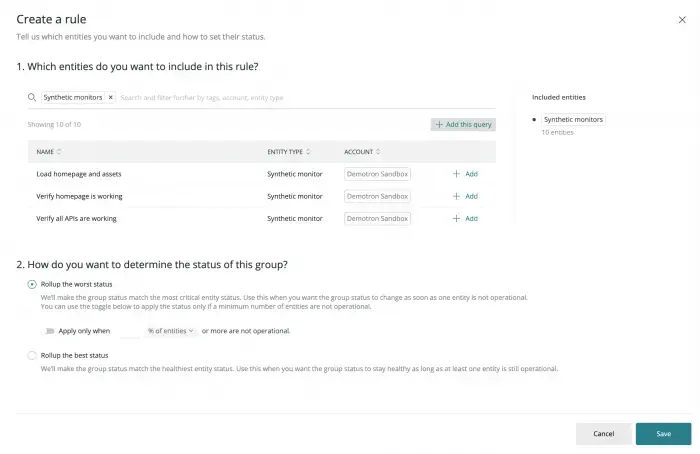
- Define the group of entities based on entity types, tag values, GUIDs, or a combination of all of them.
- Decide how to propagate the status of these entities to the group status:
- Roll up the best status: the group status matches the less critical status of all belonging entities. Use this option when you want the group status to be operational as long as at least one entity in the group is still operational.
- Roll up the worst status: the group status matches the most critical status of all belonging entities. Use this option when you want the group status to indicate a degradation or a disruption of service as soon as one entity in the group is not operational. You can also decide to roll up the worst status only after a certain amount of entities are not operational.
- Save the rule and proceed to create another one if you need to.
The final workload status equals the worst status among all the individual group statuses.
중요
In this final calculation, any automatically calculated status is overridden if a static status has been set by a workload manager.
A rule for remaining entities
For an easier and more dynamic status configuration, you can use a roll-up type for all entities that aren't evaluated in any other rule that you have defined before. In particular, if you don't add any other rule at all, the rule for remaining entities will take into account all the entities in the workload.
When combined with the grouping by entity type option, this special rule allows you to get a general sense of how each entity type in your workload is doing, without having to configure a rule for each entity type. Therefore, we recommend that you always set a rule for all remaining entities grouped by type, and roll up their worst status to quickly detect when all entities in a layer of your workload stack are not operational.
중요
After six months of inactivity, we will automatically stop the status calculation. You can reactivate it by accessing the Workload and setting it to active.
Configure alert policy and conditions
The third method for determining workload health status is to set up custom alert policies and conditions. This method allows you to define specific conditions that will trigger workload health status changes based on alert states.
To configure alert policy and conditions:
- On the Workload status setup page, select the Alert policy and conditions option
- Click Configure to open the Workload health status conditions page
- On the conditions page, you can:
- Search for existing conditions by name, condition ID, or policy name
- Filter conditions using the dropdown filters for Condition Name and Policy Name
- Create new alert policy: Click + New alert policy to define a new policy
- Create new alert condition: Click + New alert condition to add specific conditions
The status of these conditions will determine workload health. Any issues created by these conditions will make the workload report as unhealthy.
팁
Use alert policy and conditions when you want fine-grained control over what makes your workload unhealthy. This method is particularly useful when you have specific thresholds or combinations of conditions that should trigger workload status changes.
Set a static workload status
If you want to communicate the status for your workload regardless of any automatic calculation based on rules, you can set a static status value for your workload from one of the available status values.
This is useful during maintenance tasks to communicate to other teams that the status of your workload is disrupted, to provide further information, or to give the time you expect the workload to be operational again.
팁
If you regularly need to communicate a temporary status due to your deployment or operations processes, you can automate the static status set up by integrating the API into your workflows.
To set up a static workload status:
- On the Workload status setup page, select the Static option
- Click Configure to open the Set static status panel
- In the Select status dropdown, choose a status value (such as Operational, Degraded, Critical, or Disrupted)
- Optionally, enter a short summary in the Summary field to help identify the status at a glance
- Optionally, provide a detailed description in the Description field explaining what's happening to the workload
- Click Save to apply the static status
- Back on the main status setup page, click Save to confirm your configuration
Any configured static status always overrides any other status values calculated automatically. Static status is particularly useful when you want to override automatic rules and communicate a certain status during maintenance windows or other planned events.
Understand the status value
On the Workload status setup page, you can see how the status calculation is configured and the result of all the rules and/or static statuses that determine the global workload status value.
Preview panel
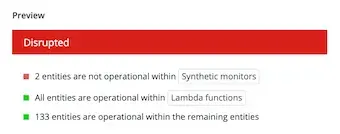
The Preview panel on the right side of the page shows:
- Unsaved changes indicator: A banner appears when you have pending configuration changes
- Entity status: The current status of entities in your workload
- Workload status: The calculated overall status (e.g., "Operational") with a colored indicator
- Status explanation: Details about which rules or conditions determine the current status
Any change that you make to the status configuration will become effective only once you save the changes. The preview updates in real-time as you modify your configuration, showing you what the status result would be if you saved the configuration at that point.
To save your configuration:
- Review the preview to ensure the status calculation matches your expectations
- Click Save in the bottom right of the page
- The new configuration will take effect immediately
Status calculation order
When multiple configuration methods are active:
- Static status always takes precedence and overrides any automatic or alert-based calculations
- If no static status is set, Automatic rules or Alert policy and conditions determine the status based on your configuration
- The workload status equals the worst status among all evaluated rules or conditions