Log parsing transforms unstructured log data into searchable attributes that you can use to gain deeper insights from your logs. These attributes allow you to filter, facet, and alert on your data with precision.
Choose your parsing strategy
Decide whether to parse data at ingest-time or when you run a query:
Parsing type
Description
Best for
Query-time parsing
Creates temporary attributes using NRQL that exist only during query execution. Ideal for instant analysis of existing data without waiting for new logs to flow in. Learn more about query-time parsing.
Ad hoc troubleshooting and investigations
Exploratory analysis on small datasets
One-time investigations
Extracting attributes from logs already stored in NRDB
Ingest-time parsing
Creates permanent attributes stored in NRDB. Two ways to create ingest-time parsing rules:
Built-in parsing rules: Pre-configured patterns for common log sources (Apache, NGINX, CloudFront, MongoDB, etc.). Simply add a logtype attribute when forwarding logs. See the full list of built-in rules.
Custom parsing rules: When your logs are unique to your application, custom parsing rules let you define exactly which fields matter to your business.
No Code Log Parsing: Detects patterns in your sample logs. Best for users who want to point-and-click to extract fields.
Custom Grok/Regex: Manual code entry for highly complex log formats.
High volumes of logs
Parsed attributes needed for alerts, dashboards, and continuous monitoring
You can also create, query, and manage your log parsing rules by using NerdGraph, our GraphQL API. A helpful tool for this is our Nerdgraph API explorer. For more information, see our NerdGraph tutorial for parsing.
How custom ingest-time parsing works
Custom parsing allows you to define exactly how New Relic structures your incoming logs. Before creating rules, it is important to understand the technical constraints of the ingestion pipeline.
Log parsing
How it works
What
Parsing rules are highly targeted. When you create a rule, you define:
The targeted field: Parsing is applied to one specific field at a time.
The matching logic: Use a NRQL WHERE clause to filter exactly which logs this rule should evaluate.
The extraction method: You can use No Code Log Parsing for automatic and guided pattern detection experience or manually write Grok/Regex for highly customized and complex log structures.
When
New Relic processes logs in a sequential order. This affects which conditions can be matched.
Parsing happens while data is ingested. Once a log is written to the NRDB, changes made are permanent.
Once a rule is saved and enabled, rules begin processing incoming logs immediately.
Parsing occurs before data enrichment (such as entity synthesis), dropped, or partitioned.
Validation
To ensure your rules work before they affect ingested data, you can preview the output against 10 log samples recently stored in the ‘Log’ partition. These samples represent data received within the last 30 minutes, rather than a real-time live stream.
Create a custom rule
You can create parsing rules in-context while investigating a log. This avoids context switching and shortens Mean Time to Detect (MTTD). Alternatively, you can create rules from scratch when onboarding a new application or service.
No Code Log Parsing
Use No Code Log Parsing to detect and extract fields from your sample logs. New Relic analyzes your sample logs and suggests patterns you can configure.
To create a rule in-context, go to one.newrelic.com > Logs and apply a filter (or select any entity that has logs, such as APM, Browser, or Mobile, and navigate to Logs in Context).
To create a rule without context, go to one.newrelic.com > Logs without setting a filter, or go to Logs > Parsing and click Create a parsing rule.
In the in-context rule creation process:
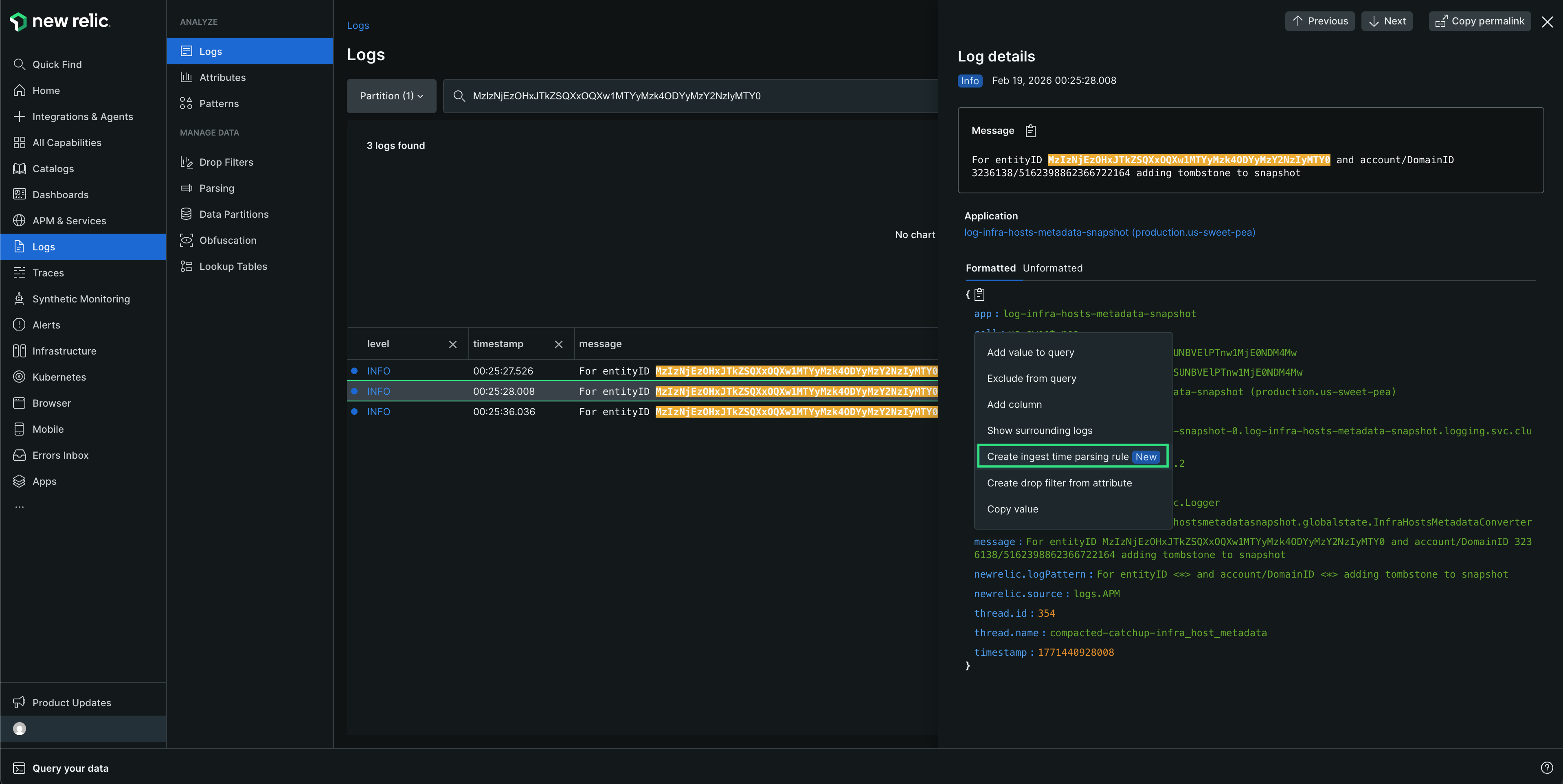
Click a log to open Log details
Select the log attribute you want to parse (for example, message)
Click Create ingest time parsing rule and provide a name for your rule
If you've applied a filter in the Logs UI before creating the rule, a matching condition is automatically populated based on that filter.
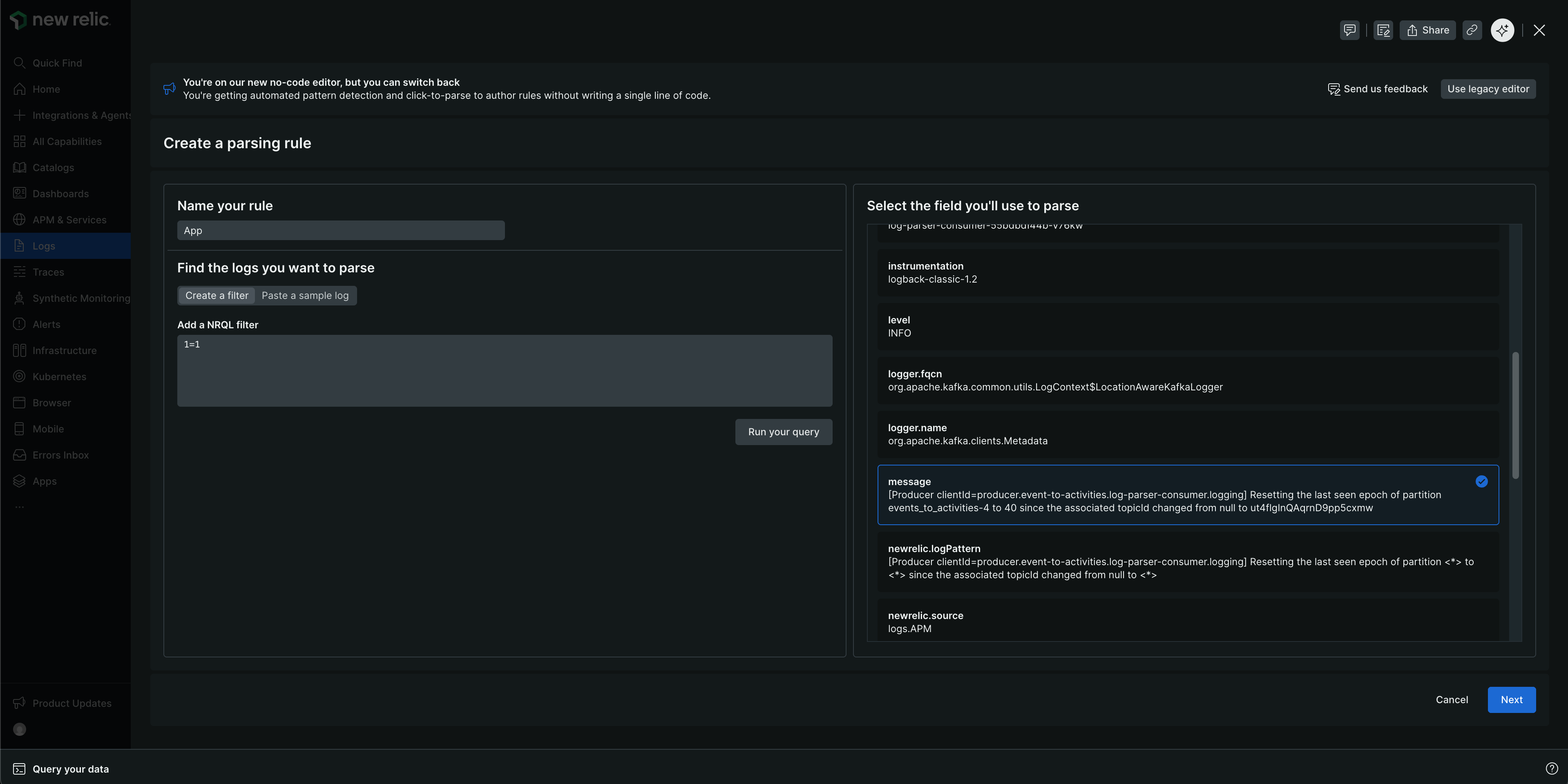
In the without context flow, provide a name for your rule and set a NRQL filter condition or paste a sample log.
If you set a log filter, click Run your query, select the field you want to parse, and click Next.
If you paste a sample log, you must define the NRQL WHERE clause to match your logs, select the field you want to parse, and click Next.
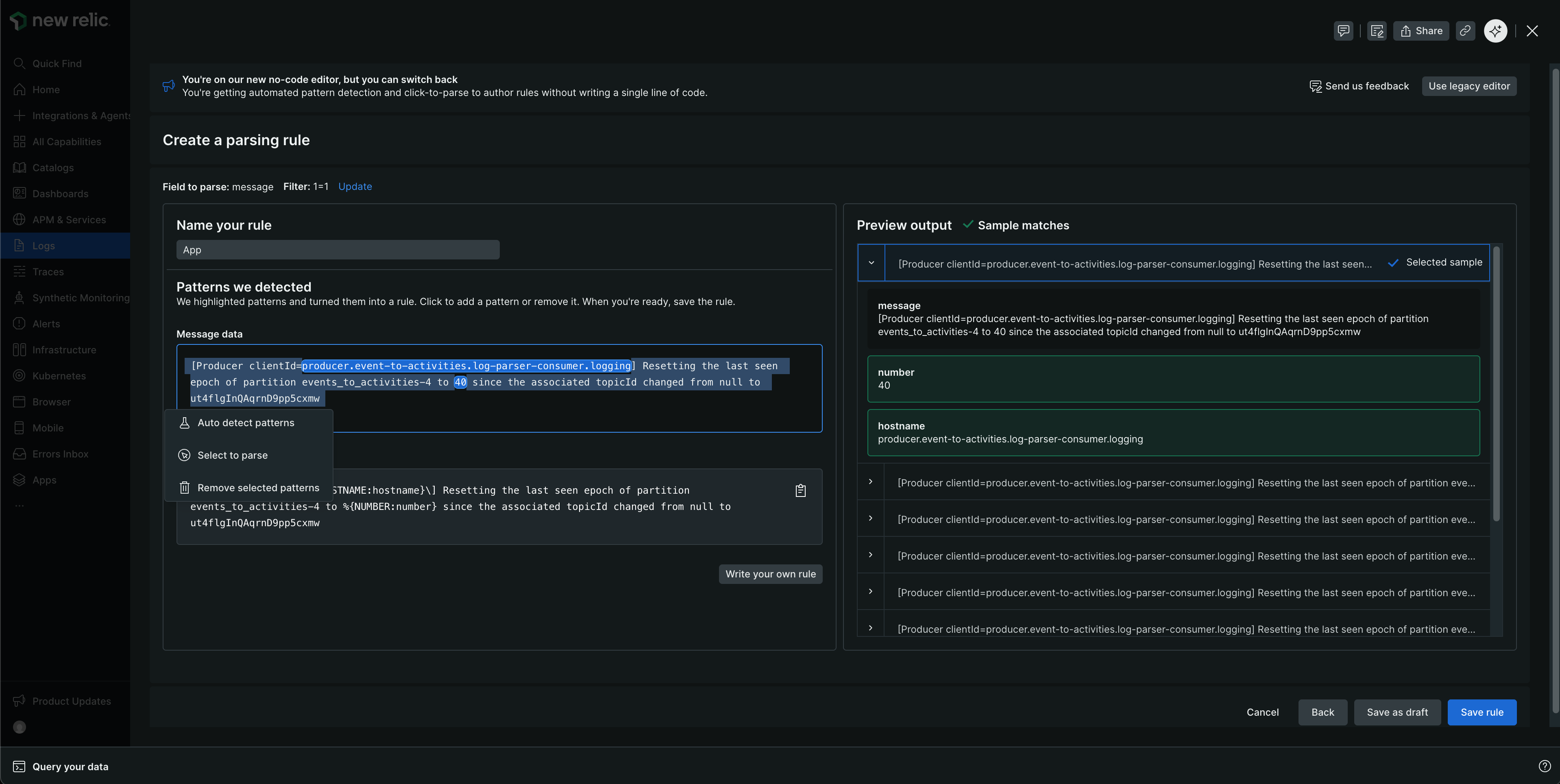
Review the Patterns we detected in the selected sample log and the rule that was authored. Click a highlighted pattern to view and edit its configuration.
Note
When naming attributes, use lowercase with underscores. Avoid special characters except underscores, and don't start an attribute name with a number.
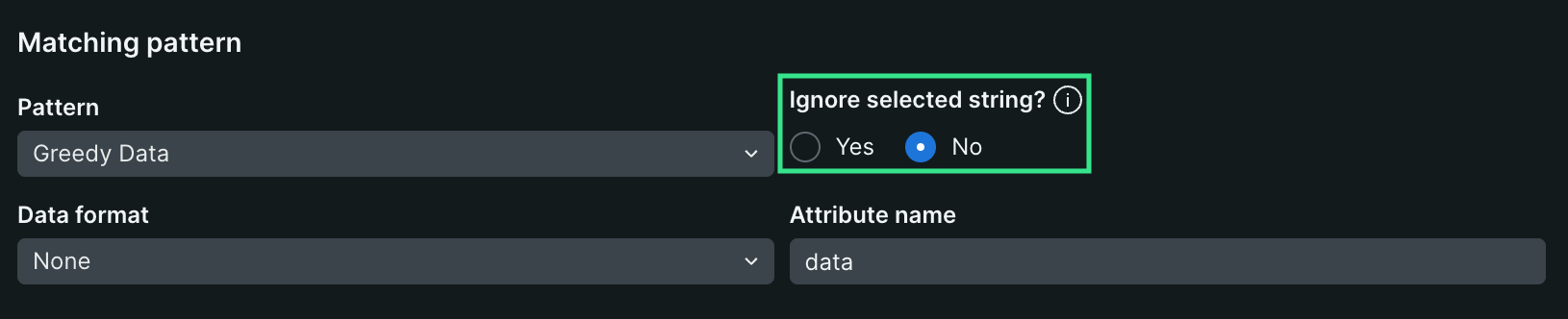
For substrings you wish to avoid parsing that include values which are dynamic, make sure to set them as dynamic substrings by selecting and changing their configuration to Yes.
For more granular control over the fields to extract, click and drag to highlight the sample log.
You can interact with the patterns in the following ways:
Auto detect patterns: To detect patterns in any part of the sample log that's not already highlighted, click and drag to highlight that substring and click Auto detect patterns. New Relic will find and highlight patterns in your selected portion. For a list of supported Grok pattern names, see Supported Grok pattern names.
Select text to parse: Select this mode for the guided rule authoring experience. This mode offers a pattern-by-pattern configuration. Once pattern configurations are set, click Add pattern to rule to see the updated rule and preview output.
If detected patterns are not relevant or extracting unwanted data, you can remove them from the authored rule by:
Highlight the unwanted pattern in the sample log window and click Remove selected patterns, or
Click a pattern and select Remove.
Review the Preview output panel. Check that sample logs show a green checkmark, indicating they match your rule and fields will be extracted at ingest time.
To change your sample, expand any log in the Preview output panel and click Use as sample.
If you selected an unmatched log: The selected sample will show up in the sample log window, new patterns will be detected, and a new rule will be authored.
If you selected a matched log: The selected sample will show up in the sample log window.
Click Save rule to activate immediately, or Save as draft to activate later.
Write your own custom Grok/Regex
For unique formats, advanced users can click on Write your own rule on the Create a parsing rule page to switch to the code editor and modify patterns directly in the rule editor.
Once done editing the rule, click Preview to see the updated preview output and click Save rule to activate it.
Note
To switch to the legacy editor, click Switch to original editor in the top right corner of the Create a parsing rule page.
Supported data patterns
New Relic supports parsing various data types and data formats using Grok patterns. Parsing patterns are specified using Grok, an industry standard for parsing log messages. Grok is a superset of regular expressions that adds built-in named patterns to be used in place of literal complex regular expressions.
Parsing rules can include a mix of regular expressions and Grok pattern names in your matching string. Click this link for a list of supported Grok patterns, and here for a list of supported Grok types.
PATTERN_NAME is one of the supported Grok patterns. The pattern name is just a user-friendly name representing a regular expression. They are exactly equal to the corresponding regular expression.
OPTIONAL_EXTRACTED_ATTRIBUTE_NAME, if provided, is the name of the attribute that will be added to your log message with the value matched by the pattern name. It's equivalent to using a named capture group using regular expressions. If this is not provided, then the parsing rule will just match a region of your string, but not extract an attribute with its value.
OPTIONAL_TYPE specifies the type of attribute value to extract. If omitted, values are extracted as strings. For instance, to extract the value 123 from "File Size: 123" as a number into attribute file_size, use value: %{INT:file_size:int}.
OPTIONAL_PARAMETER specifies an optional parameter for certain types. Currently only the datetime type takes a parameter, see below for details.
The OPTIONAL_TYPE field specifies the type of attribute value to extract. If omitted, values are extracted as strings.
Supported types are:
Type specified in Grok
Type stored in the New Relic database
boolean
boolean
byteshortintinteger
integer
long
long
float
float
double
double
string (default)
text
string
datedatetime
Time as a long
By default, it is interpreted as ISO 8601. If OPTIONAL_PARAMETER is present, it specifies
the date and time pattern stringto use to interpret the datetime.
Note that this is only available during parsing. We have an additional, separate timestamp interpretation step that occurs for all logs later in the ingestion pipeline.
If you have multiline logs, be aware that the GREEDYDATA Grok pattern does not match newlines (it is equivalent to .*).
So instead of using %{GREEDYDATA:some_attribute} directly, you will need to add the multiline flag in front of it: (?s)%{GREEDYDATA:some_attribute}
The New Relic logs pipeline parses your log JSON messages by default, but sometimes you have JSON log messages that are mixed with plain text. In this situation, you may want to be able to parse them and then be able to filter using the JSON attributes.
If that is the case, you can use the jsonGrok type, which will parse the JSON captured by the Grok pattern. This format relies on 3 main parts: the Grok syntax, the prefix you would like to assign to the parsed JSON attributes, and the jsonGrok type. Using the jsonGrok type, you can extract and parse JSON from logs that are not properly formatted; for example, if your logs are prefixed with a date/time string:
You can define the list of attributes to extract or drop with the options keepAttributes or dropAttributes.
For example, with the following Grok expression:
If you want to omit the my_attribute_prefix prefix and only keep the status attribute, you can include "noPrefix": true and "keepAttributes: ["status"] in the configuration.
If your JSON has been escaped, you can use the isEscaped option to be able to parse it.
If your JSON has been escaped and then quoted, you need to match the quotes as well, as shown below.
For example, with the following Grok expression:
To configure the jsonGrok type, use :json(_CONFIG_):
json({"dropOriginal": true}): Drop the JSON snippet that was used in parsing. When set to true (default value), the parsing rule will drop the original JSON snippet. Note the JSON attributes will remain in the message field.
json({"dropOriginal": false}): This will show the JSON payload that was extracted. When set to false, the full JSON-only payload will be displayed under an attribute named in my_attribute_prefix above. Note the JSON attributes will remain in the message field here as well giving the user 3 different views of the JSON data. If storage of all three versions is a concern it's recommended to use the default of true here.
json({"depth": 62}): Levels of depth you want to parse the JSON value (defaulted to 62).
json({"keepAttributes": ["attr1", "attr2", ..., "attrN"]}): Specifies which attributes will be extracted from the JSON. The provided list cannot be empty. If this configuration option is not set, all attributes are extracted.
json({"dropAttributes": ["attr1", "attr2", ..., "attrN"]}): Specifies which attributes to be dropped from the JSON. If this configuration option is not set, no attributes are dropped.
json({"noPrefix": true}): Set this option to true to remove the prefix from the attributes extracted from the JSON.
json({"isEscaped": true}): Set this option to true to parse JSON that has been escaped (which you typically see when JSON is stringified, for example {\"key\": \"value\"})
If your system sends comma-separated values (CSV) logs and you need to parse them in New Relic, you can use the csvGrok type, which parses the CSV captured by the Grok pattern.
This format relies on 3 main parts: the Grok syntax, the prefix you would like to assign to the parsed CSV attributes, and the csvGrok type. Using the csvGrok type, you can extract and parse CSV from logs.
It's mandatory to indicate the columns in the CSV Grok type configuration (which should be a valid JSON).
You can ignore any column by setting "_" (underscore) as the column name to drop it from the resulting object.
Optional configuration options:
While the "columns" configuration is mandatory, it's possible to change the parsing of the CSV with the following settings.
dropOriginal: (Defaults to true) Drop the CSV snippet used in parsing. When set to true (default value), the parsing rule drops the original field.
noPrefix: (Defaults to false) Doesn't include the Grok field name as prefix on the resulting object.
separator: (Default to ,) Defines the character/string that split each column.
Another common scenario is tab-separated values (TSV), for that you should indicate \t as separator, ex. %{GREEDYDATA:log:csv({"columns": ["timestamp", "status", "method", "url", "time", "bytes"], "separator": "\t"})
quoteChar: (Default to ") Defines the character that optionally surrounds a column content.
If your system sends logs containing IPv4 addresses, New Relic can locate them geographically and enrich log events with the specified attributes. You can use the geoGrok type, which finds the position of an IP address captured by the Grok pattern. This format can be configured to return one or more fields related to the address, such as the city, country, and latitude/longitude of the IP.
It's mandatory to specify the desired lookup fields returned by the geo action. At least one item is required from the following options.
city: Name of city
countryCode: Abbreviation of country
countryName: Name of country
latitude: Latitude
longitude: Longitude
postalCode: Postal code, zip code, or similar
region: Abbreviation of state, province, or territory
regionName: Name of state, province, or territory
The New Relic logs pipeline parses your log messages by default, but sometimes you have log messages that are formatted as key-value pairs. In this situation, you may want to be able to parse them and then be able to filter using the key-value attributes.
If that is the case, you can use the keyvalueGrok type, which will parse the key-value pairs captured by the Grok pattern. This format relies on 3 main parts: the Grok syntax, the prefix you would like to assign to the parsed key-value attributes, and the keyvalueGrok type. Using the keyvalueGrok type, you can extract and parse key-value pairs from logs that are not properly formatted; for example, if your logs are prefixed with a date/time string:
"my_attribute_prefix.message": "'This message contains information with spaces",
"my_attribute_prefix.nbn_demo": "INFO",
"my_attribute_prefix.sessionId": "abc123"
Grok Pattern Parameters
You can customize the parsing behavior with the following options to suit your log formats:
delimiter
Description: String separating each key-value pair.
Default Value:, (comma)
Override: Set the field delimiter to change this behavior.
keyValueSeparator
Description: String used to assign values to keys.
Default Value:=
Override: Set the field keyValueSeparator for custom separator usage.
quoteChar
Description: Character used to enclose values with spaces or special characters.
Default Value:" (double quote)
Override: Define a custom character using quoteChar.
dropOriginal
Description: Drops the original log message after parsing. Useful for reducing log storage.
Default Value:true
Override: Set dropOriginal to false to retain the original log message.
noPrefix
Description: When true, excludes Grok field name as a prefix in the resulting object.
Default Value:false
Override: Enable by setting noPrefix to true.
escapeChar
Description: Define a custom escape character to handle special log characters.
Default Value: "\" (backslash)
Override: Customize with escapeChar.
trimValues
Description: Allows trimming of values that contain whitespace.
Default Value:false
Override: Set trimValues to true to activate trimming.
trimKeys
Description: Allows trimming of keys that contain whitespace.
Default Value:true
Override: Set trimKeys to true to activate trimming.
New Relic supports the following Grok patterns:
IP
TIMESTAMP_ISO8601
HTTPDATE
TIME
UUID
MONTH
SPACE
DATESTAMP
DATE
COMBINEDAPACHELOG
ISO8601_TIMEZONE
MAC
DATE_EU
TZ
DATE_US
DAY
LOGLEVEL
NUMBER
INT
QUOTEDSTRING
SYSLOGTIMESTAMP
PATH
SYSLOGBASE
COMMONAPACHELOG
IPV6
COMMONMAC
DATESTAMP_OTHER
ISO8601_SECOND
DATESTAMP_EVENTLOG
SYSLOGBASE2
HAPROXYHTTP
RUBY_LOGGER
WINDOWSMAC
WORD
DATA
GREEDYDATA
NOTSPACE
BASE16FLOAT
QS
BASE10NUM
USER
IPORHOST
USERNAME
IPV4
MONTHDAY
YEAR
HOSTNAME
POSINT
URIPATHPARAM
URI
URIPATH
MONTHNUM
NONNEGINT
MINUTE
SECOND
HOUR
URIHOST
URIPROTO
URIPARAM
SYSLOGHOST
BASE16NUM
SYSLOGPROG
HOST
HOSTPORT
JAVACLASS
PROG
UNIXPATH
WINPATH
MONTHNUM2
RUBY_LOGLEVEL
SYSLOGFACILITY
CRON_ACTION
HAPROXYCAPTUREDREQUESTHEADERS
HAPROXYCAPTUREDRESPONSEHEADERS
HAPROXYDATE
CISOMAC
Manage parsing rules
After creating parsing rules, you can manage them from Logs > Parsing. Draft rules are saved but not yet activated. You can activate them when you're ready to apply them to incoming logs.
To edit a parsing rule:
In your parsing rules list, click the rule name or click ... > Edit and make the required changes. To switch to the code editor, click Write your own rule to write or modify Grok/Regex patterns directly.
Click Save rule (or Save as draft if you want to keep it disabled).
Changes apply to logs ingested after the update. To enable, disable, or delete a parsing rule:
Find the rule in your parsing rules list and click ... menu.
Choose an action:
Enable: Activates the draft rule (applies to newly ingested logs immediately)
Disable: Temporarily pauses the active rule
Delete: Removes the rule completely
Limits
Parsing is computationally intensive. To ensure platform stability, New Relic enforces the following:
Per-message limit: A rule has 100ms to parse a single message. If it exceeds this, parsing stops for that message.
Per-account limit: Total processing time is capped per minute. If you hit this, logs remain unparsed (stored in their original format).
Pipeline timing: Parsing occurs before enrichment. You cannot match a parsing rule against an attribute that hasn't been added yet (like a tag added later in the pipeline).
The first-match rule: Parsing rules are unordered. If multiple rules match a single log, New Relic applies one at random. Ensure your NRQL WHERE clauses are specific enough to avoid overlapping matches.
팁
To easily check if your rate limits have been reached, go to your system
Limits page in the New Relic UI.
Troubleshooting
If parsing isn't working the way you intended, it may be due to:
Logic: The parsing rule matching logic doesn't match the logs you want.
Timing: If your parsing matching rule targets a value that doesn't exist yet, it will fail. This can occur if the value is added later in the pipeline as part of the enrichment process.
Limits: There is a fixed amount of time available every minute to process logs via parsing, patterns, drop filters, etc. If the maximum amount of time has been spent, parsing will be skipped for additional log event records.