Overview
The Summary page provides a comprehensive view of video playback performance for a specific monitored application. This page serves as the main dashboard for monitoring video quality, user engagement, and overall streaming performance within a single application or platform.
What you can do with Summary
Use this page to:
- Monitor video quality golden metrics including rebuffering ratio, bitrate, start time, and failures for a specific application
- Track video engagement metrics including attempts, plays, completions, and failures
- Identify videos with high start time, incomplete plays, or playback issues within the application
- Analyze video performance by platform, OS version, video player name, ISP, region, and resolution
- Expand metrics to view in-depth details and trend analysis
- Add widgets to dashboards for ongoing performance monitoring
- Create alert conditions to proactively monitor streaming performance for the application
- Generate predictions and compare performance trends using NRQL queries
- Export metrics as images for reporting
- Create new streaming entities directly from this page
Who uses this page
This page is useful for application developers, product managers, and operations teams who need to monitor video playback quality for a specific application, identify application-specific performance issues, and ensure the streaming experience meets quality standards for that platform.
Summary page
The Single platforms > Summary for Streaming Video & Ads provides a summary of a session across the specific applications/platform.
View the Summary page
To view the summary of the video agent for a specific application:
Go to one.newrelic.com > All Capabilities > Streaming Video & Ads > Streaming Entities
Select the application.
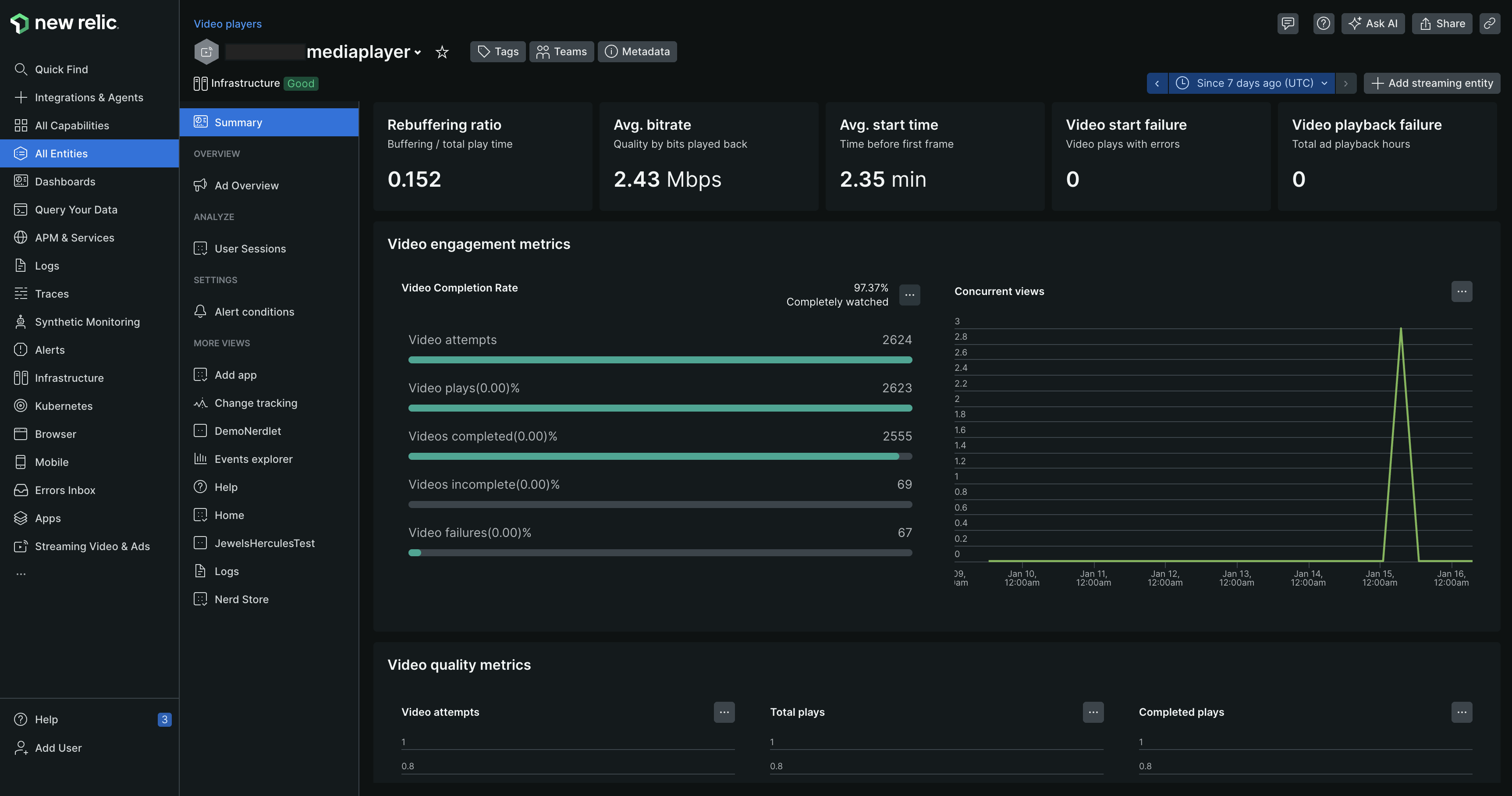
View the golden metrics
Displays the ad playback metrics across a specific monitored streaming applications. These metrics can help you better assess the performance of ads across a specific applications and see how your ad performs according to Video Quality and Video Engagement. These include:
Golden metrics | Description |
|---|---|
Rebuffering Ratio | Percentage of video plays that experienced buffering. |
Avg. bitrate | Measurement of video quality based on the bits played back. |
Avg. start time | The average time it takes before the first frame loads. |
Video Start Failures | Count of video play attempts that failed to start (excluding user-initiated terminations). |
Video playback failures | Count of video plays that started but failed before completion, reporting an error. |

View the Video engagement metrics
Use the Video engagement metrics to understand how your video performs across the application. These include:
Video engagement metrics | Description |
|---|---|
Video Attempts | Total number of video play attempts (triggered by user action or auto-play). |
Video Plays | Number of successful play attempts where at least one frame was viewed. |
Video completed | Number of plays where the entire video was watched. |
Video incomplete | Number of plays where only a portion of the video was watched. |
Video failures | Number of video plays that failed to start. |
Max Concurrent Views | Peak number of active video sessions within the selected time interval. |
Total plays | Total number of video plays. |
Completed Plays | Number of plays where the entire video was watched. |
Incomplete Plays | Number of plays where only a portion of the video was watched. |
Rebuffered During Play | Count of video plays with at least one buffering event lasting a second or more. |
Exits before video start | Number of video plays terminated by the user due to long startup times. |
High start time | Number of attempts where the initial frame display took longer than 5 seconds. |
Start Failures | Trend chart for video start failures. |
Playback Failures | Visualization of playback failures over time. |
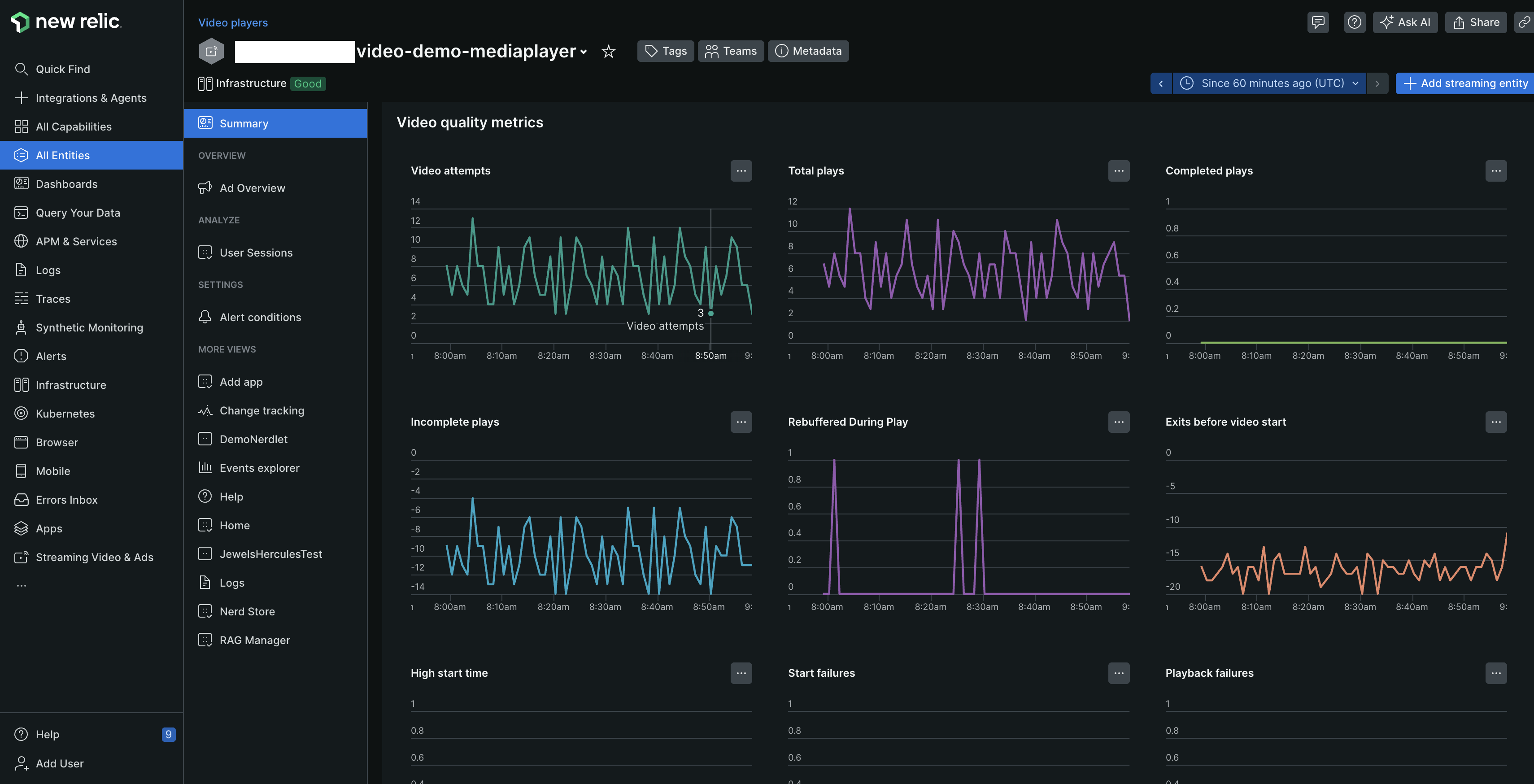
Additional features
Get an in-depth insight of the Video quality metrics by clicking the ellipsis icon on the right side of the metrics. Let us consider an example, as a user, you would like to view details related to Video attempts.
On the Video attempts graph under the Video quality metrics, click the ellipsis icon.
You may perform the following actions:
Action
Description
Image
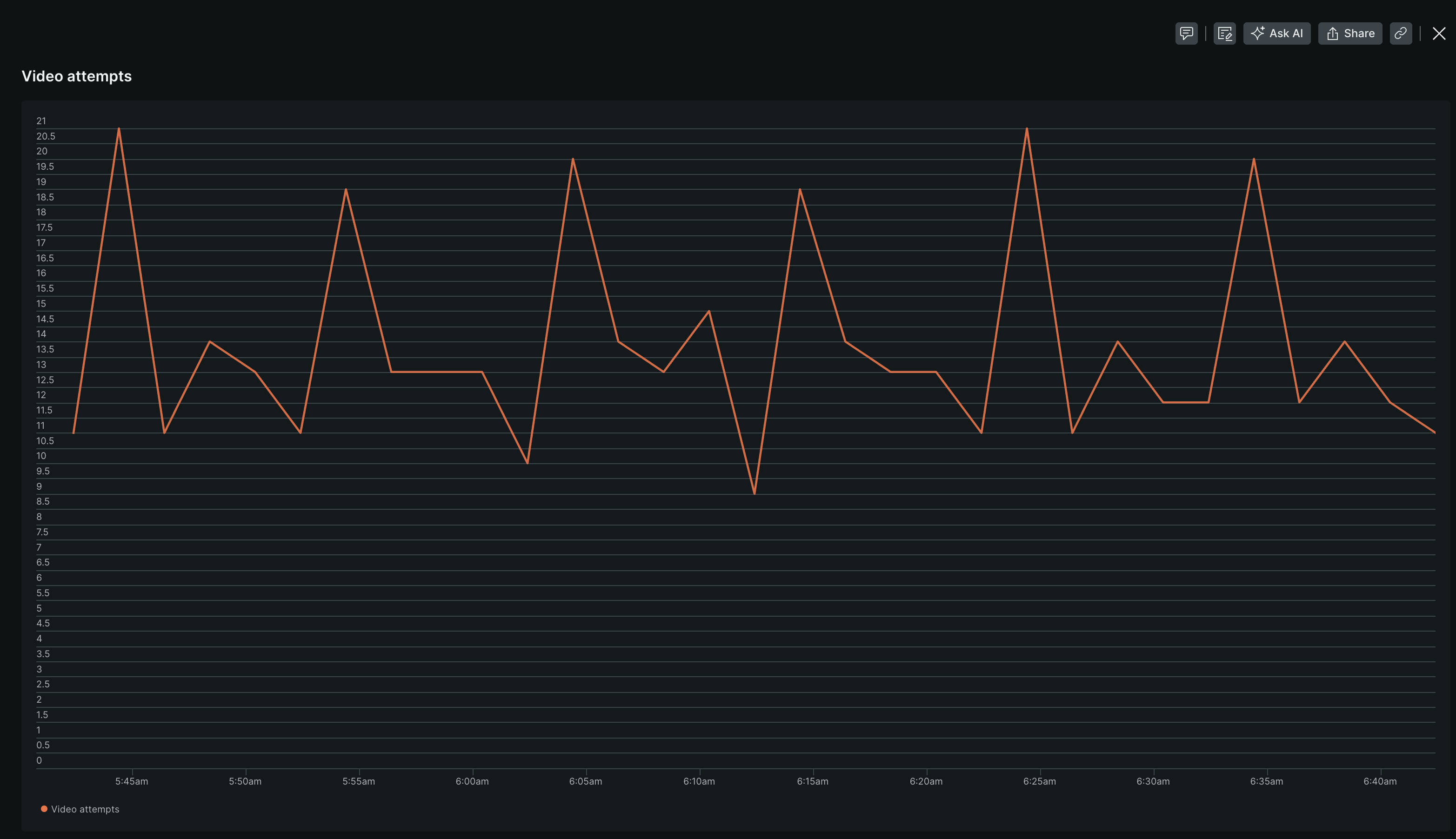
Expand
Expand the data to view in-depth details.
Add to dashboard
Add widget to an existing or create a new dashboard.

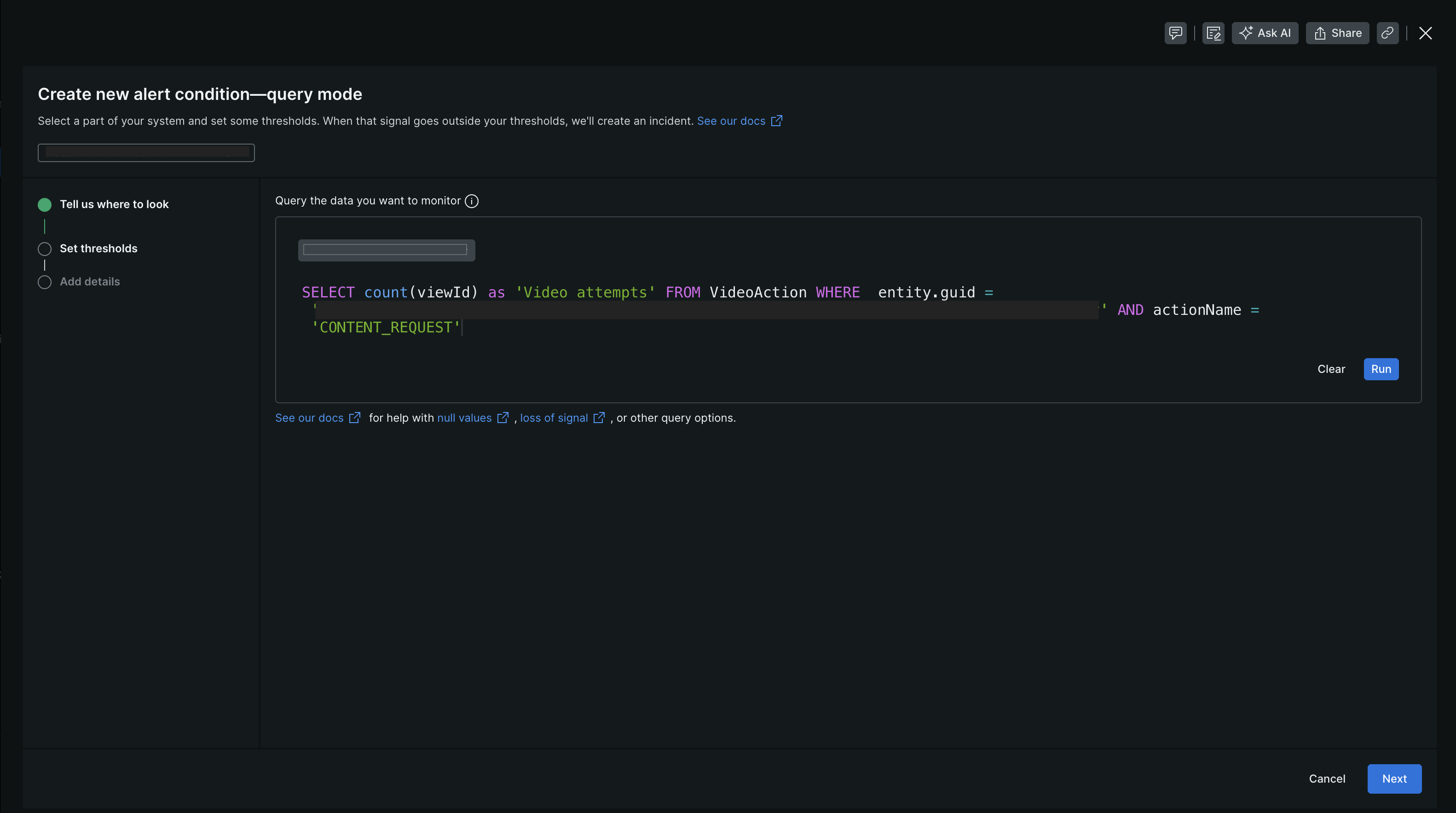
Create an alert condition
Create an alert condition to measure the set of event against a defined threshold and open an alert event when the threshold is met for a specified window of time.
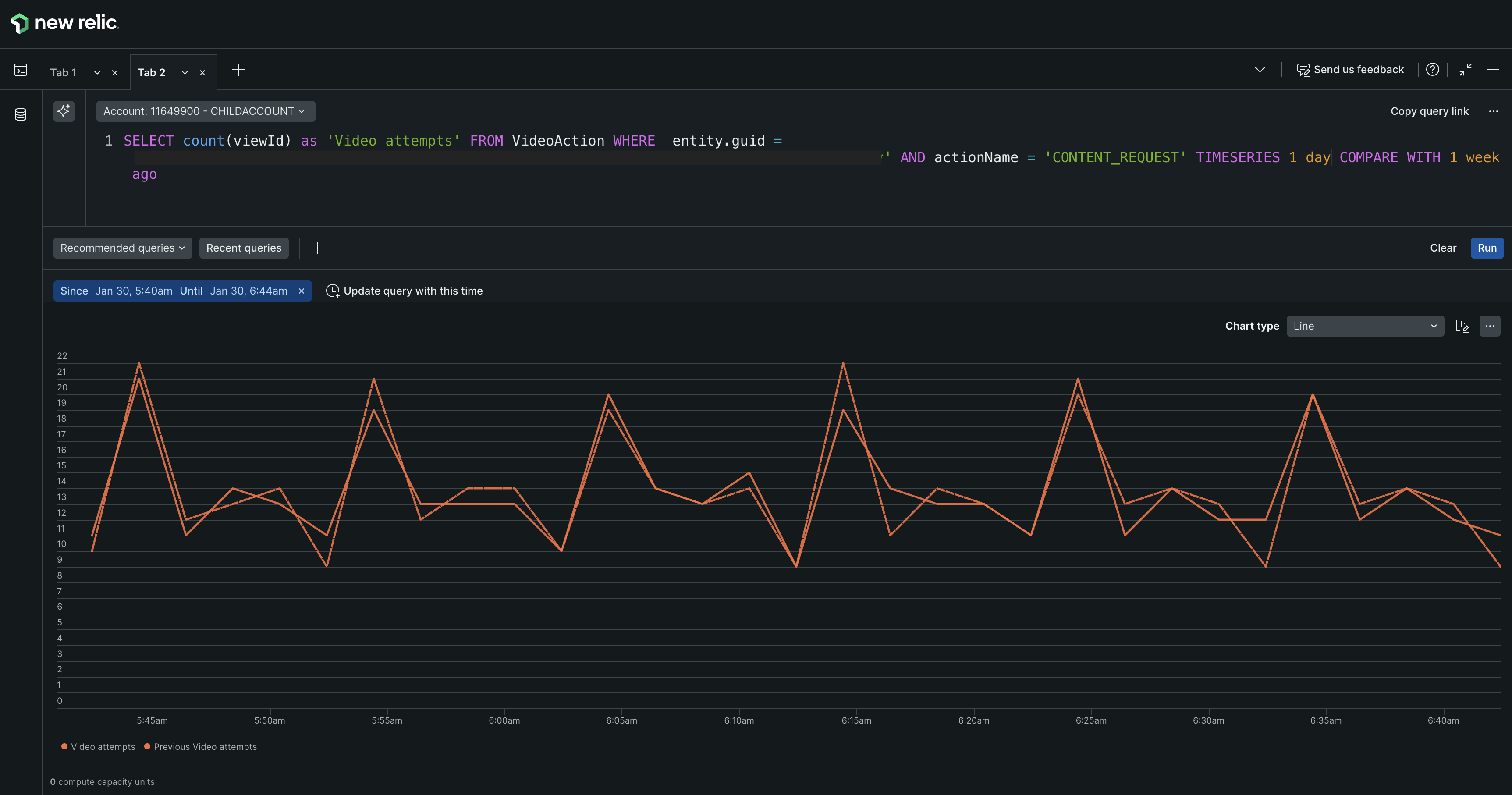
Predict trend
Generate a prediction of the graph using NRQL query. For example, generate a time series of event from 1 day and compare it with 1 week ago.
Get as image
Download the graph as an image and share the link with your team.
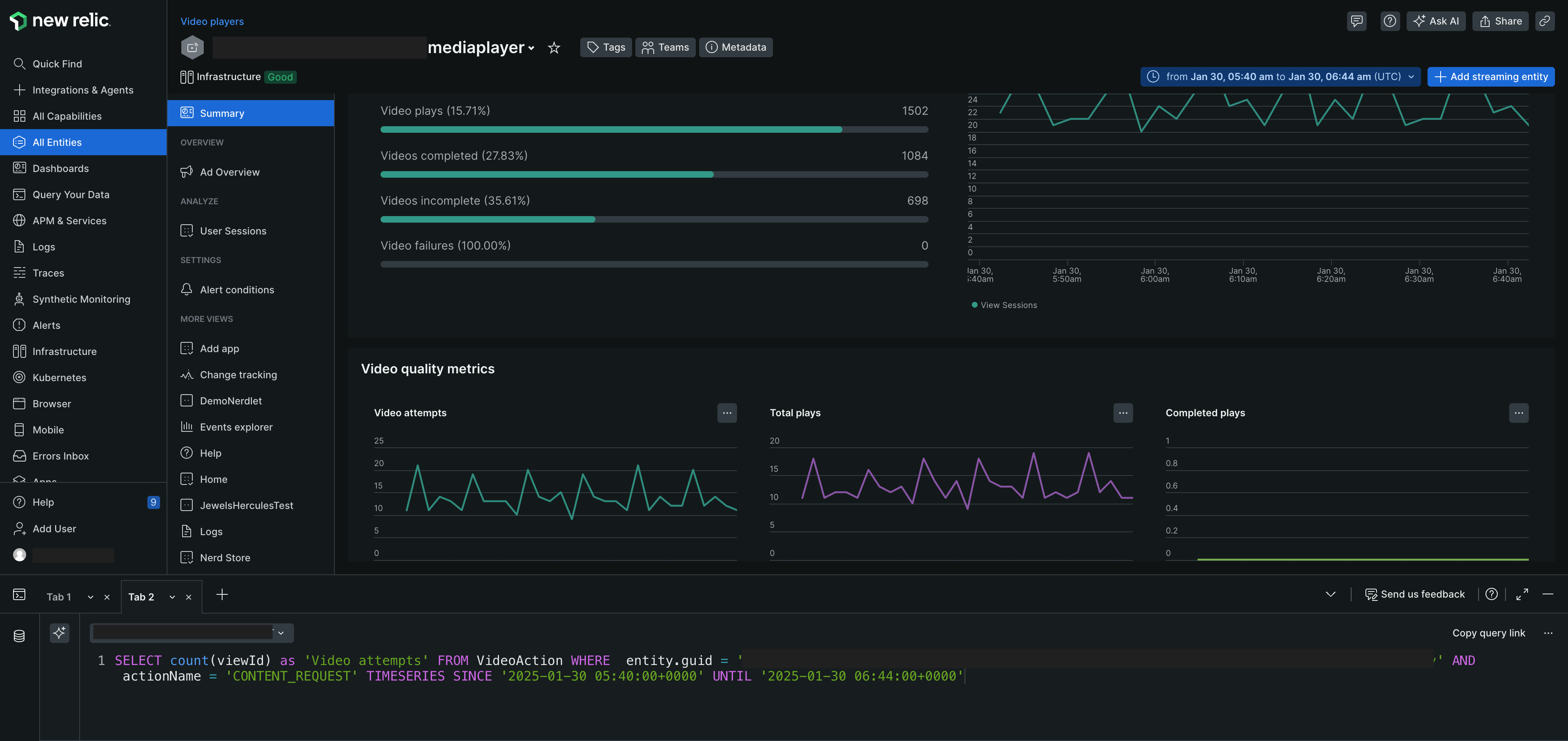
View query
Generate the NRQL query for the graph.
Dimensions KPIs
Explore and analyze traffic in depth by utilizing multiple parameters, including platform and video player name. Gain insights into customer viewing habits, such as the percentage of customers watching specific content, the resolution at which videos are being viewed, and detailed information about the device's operating system version.
Platform: The device type, for example, Roku, Browser, Android, or iOS device.
OS Version: The operating system version for the device. If you are using an Android or iOS device, the version of the operating system will be displayed.
Video player name: The name of the video player used to play the video.
ISP: The Internet Service Provider (ISP) used by the viewer.
Region: The geographical location of the viewer.
Video Resolution: The resolution of the video played by the viewer.
Add Streaming Entity
By default, the Streaming Entities page displays all the entities associated with the account. However, if you wish to create a new streaming entity:
- Click + Add streaming entity, top right corner of the page.
- Select the type of app you want to monitor. See Install the video agent
What's next?
- View Ad Overview for a specific applications/platforms.
- View User Sessions for a specific applications/platforms.
- View Alert Conditions for a specific application/platform.