---
title: Parsing log data
source: https://docs.newrelic.com/docs/logs/ui-data/parsing
---
Log parsing transforms unstructured log data into searchable attributes that you can use to gain deeper insights from your logs. These attributes allow you to filter, facet, and alert on your data with precision.
## Choose your parsing strategy [#choose]
Decide whether to parse data at ingest-time or when you run a query:
| Parsing type | Description | Best for |
| ----------------------- | ------------------------------------------------------------------------------------------------------------------------------------------------------------------------------------------------------------------------------------------------------------------------------------------------------------------------------------------------------------------------------------------------------------------------------------------------------------------------------------------------------------------------------------------------------------------------------------------------------------------------------------------------------------------------------------------------------------------------------------------------------------- | ----------------------------------------------------------------------------------------------------------------------------------------------------------------------- |
| **Query-time parsing** | Creates temporary attributes using NRQL that exist only during query execution. Ideal for instant analysis of existing data without waiting for new logs to flow in. Learn more about [query-time parsing](https://docs.newrelic.com/docs/logs/ui-data/query-time-parsing). | - Ad hoc troubleshooting and investigations - Exploratory analysis on small datasets - One-time investigations - Extracting attributes from logs already stored in NRDB |
| **Ingest-time parsing** | Creates permanent attributes stored in NRDB. Two ways to create ingest-time parsing rules: - **Built-in parsing rules:** Pre-configured patterns for common log sources (Apache, NGINX, CloudFront, MongoDB, etc.). Simply add a `logtype` attribute when forwarding logs. See the [full list of built-in rules](https://docs.newrelic.com/docs/logs/ui-data/built-log-parsing-rules). - **Custom parsing rules:** When your logs are unique to your application, custom parsing rules let you define exactly which fields matter to your business. - **No Code Log Parsing:** Detects patterns in your sample logs. Best for users who want to point-and-click to extract fields. - **Custom Grok/Regex:** Manual code entry for highly complex log formats. | - High volumes of logs - Parsed attributes needed for alerts, dashboards, and continuous monitoring |
You can also create, query, and manage your log parsing rules by using NerdGraph, our GraphQL API. A helpful tool for this is our [Nerdgraph API explorer](https://api.newrelic.com/graphiql). For more information, see our [NerdGraph tutorial for parsing](https://docs.newrelic.com/docs/apis/nerdgraph/examples/nerdgraph-log-parsing-rules-tutorial/).
/\*
Here's a 5-minute video about log parsing:
\*/
## How custom ingest-time parsing works [#how-it-works]
Custom parsing allows you to define exactly how New Relic structures your incoming logs. Before creating rules, it is important to understand the technical constraints of the ingestion pipeline.
| Log parsing | How it works |
| ----------- | -------------------------------------------------------------------------------------------------------------------------------------------------------------------------------------------------------------------------------------------------------------------------------------------------------------------------------------------------------------------------------------------------------------------------------------------------------------------------- |
| What | Parsing rules are highly targeted. When you create a rule, you define: - **The targeted field:** Parsing is applied to one specific field at a time. - **The matching logic:** Use a NRQL `WHERE` clause to filter exactly which logs this rule should evaluate. - **The extraction method:** You can use **No Code Log Parsing** for automatic and guided pattern detection experience or manually write **Grok/Regex** for highly customized and complex log structures. |
| When | New Relic processes logs in a sequential order. This affects which conditions can be matched. - Parsing happens while data is ingested. Once a log is written to the NRDB, changes made are permanent. - Once a rule is saved and enabled, rules begin processing incoming logs immediately. - Parsing occurs **before** data enrichment (such as entity synthesis), dropped, or partitioned. |
| Validation | To ensure your rules work before they affect ingested data, you can preview the output against 10 log samples recently stored in the ‘Log’ partition. These samples represent data received within the last 30 minutes, rather than a real-time live stream. |
## Create a custom rule [#custom-parsing]
You can create parsing rules in-context while investigating a log. This avoids context switching and shortens Mean Time to Detect (MTTD). Alternatively, you can create rules from scratch when onboarding a new application or service.
### No Code Log Parsing [#no-code]
Use No Code Log Parsing to detect and extract fields from your sample logs. New Relic analyzes your sample logs and suggests patterns you can configure.
1. To create a rule in-context, go to **[one.newrelic.com](https://one.newrelic.com) > Logs** and apply a filter (or select any entity that has logs, such as APM, Browser, or Mobile, and navigate to **Logs in Context**).
To create a rule without context, go to **[one.newrelic.com](https://one.newrelic.com) > Logs** without setting a filter, or go to **Logs > Parsing** and click **Create a parsing rule**.
2. In the in-context rule creation process:
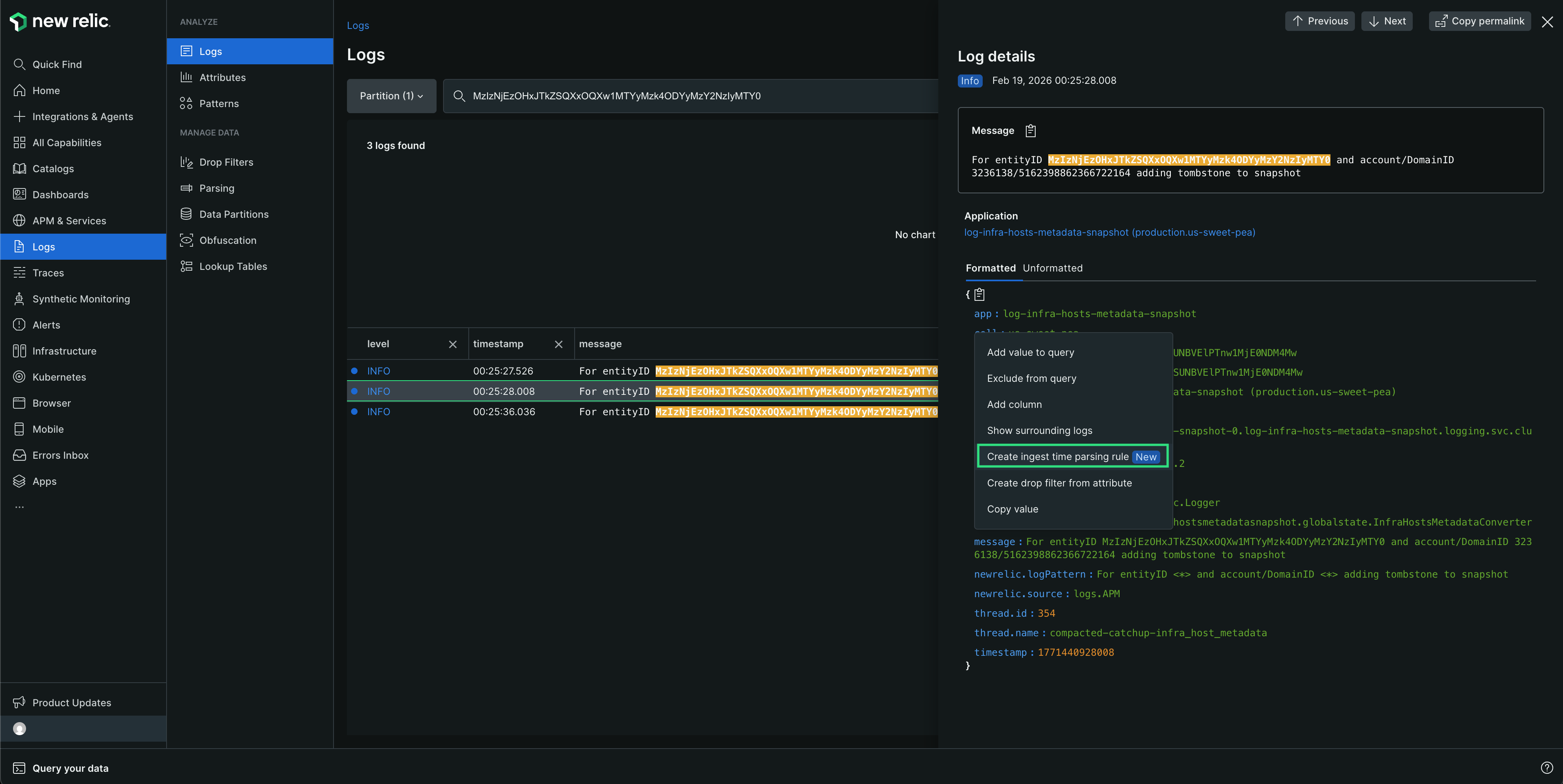
1. Click a log to open **Log details**
2. Select the log attribute you want to parse (for example, `message`)
3. Click **Create ingest time parsing rule** and provide a name for your rule
If you've applied a filter in the Logs UI before creating the rule, a matching condition is automatically populated based on that filter.
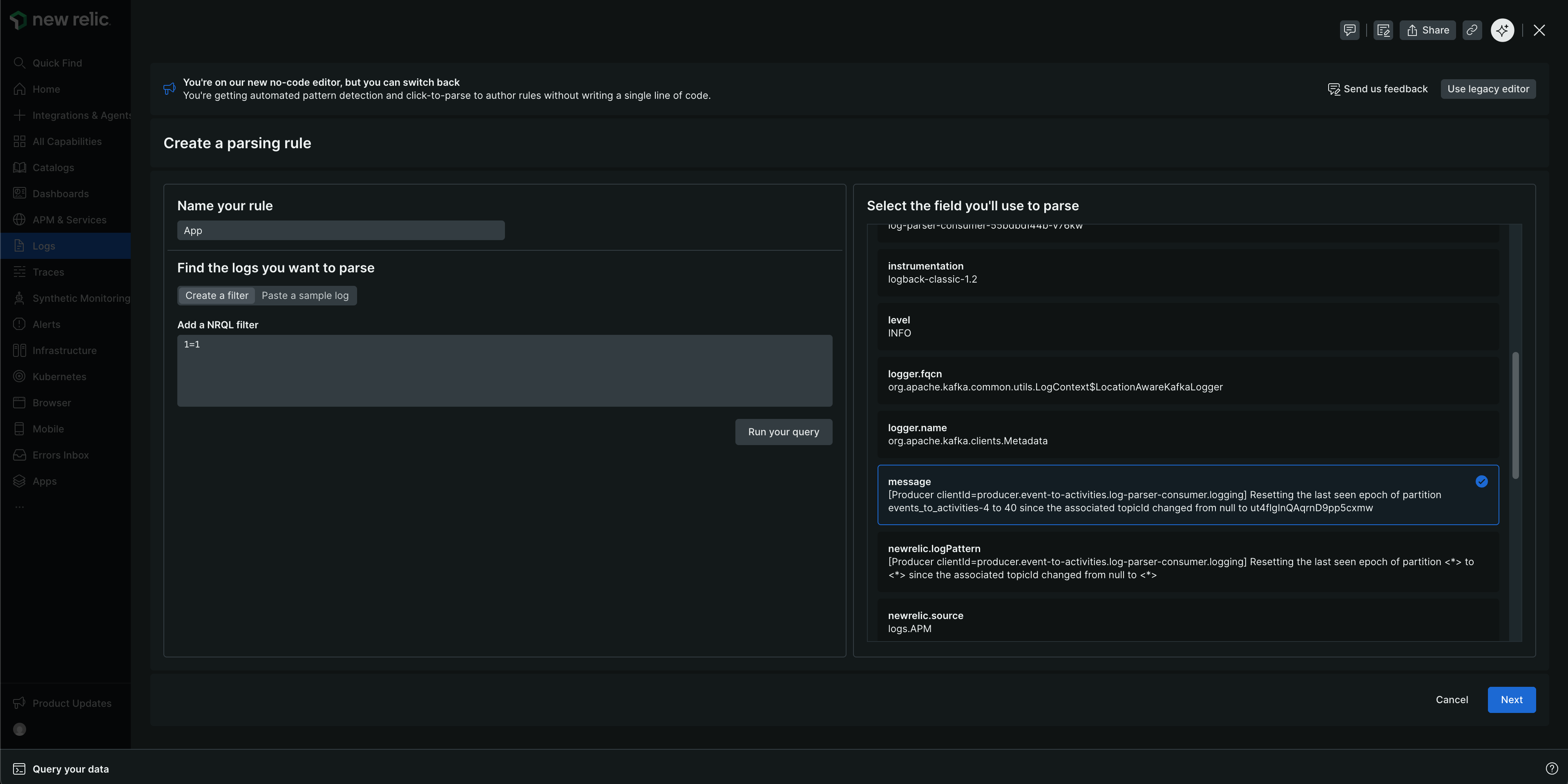
In the without context flow, provide a name for your rule and set a NRQL filter condition or paste a sample log.
- If you set a log filter, click **Run your query**, select the field you want to parse, and click **Next**.
- If you paste a sample log, you must define the NRQL `WHERE` clause to match your logs, select the field you want to parse, and click **Next**.
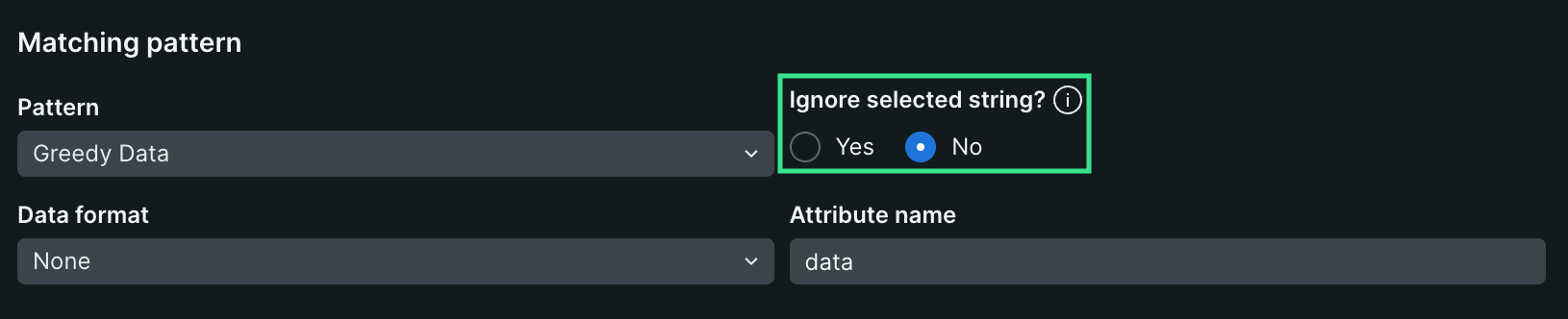
3. Review the **Patterns we detected** in the selected sample log and the rule that was authored. Click a highlighted pattern to view and edit its configuration.
> #### 💡 NOTE
>
> - When naming attributes, use lowercase with underscores. Avoid special characters except underscores, and don't start an attribute name with a number.
>
> - For substrings you wish to avoid parsing that include values which are dynamic, make sure to set them as dynamic substrings by selecting and changing their configuration to **Yes**.
4. For more granular control over the fields to extract, click and drag to highlight the sample log.
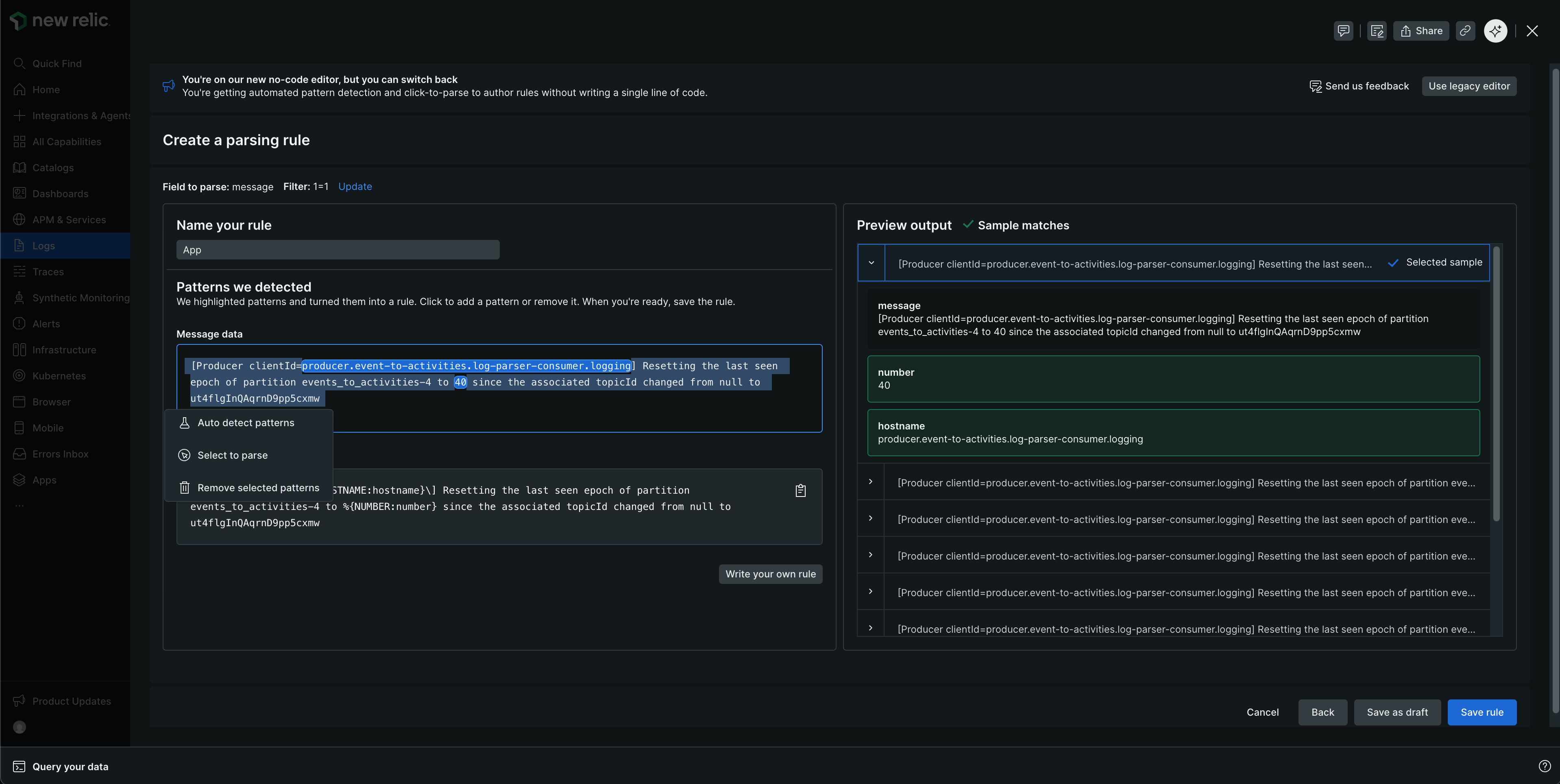
You can interact with the patterns in the following ways:
- **Auto detect patterns**: To detect patterns in any part of the sample log that's not already highlighted, click and drag to highlight that substring and click **Auto detect patterns**. New Relic will find and highlight patterns in your selected portion. For a list of supported Grok pattern names, see [Supported Grok pattern names](#grok-patterns).
- **Select text to parse**: Select this mode for the guided rule authoring experience. This mode offers a pattern-by-pattern configuration. Once pattern configurations are set, click **Add pattern to rule** to see the updated rule and preview output.
If detected patterns are not relevant or extracting unwanted data, you can remove them from the authored rule by:
- Highlight the unwanted pattern in the sample log window and click **Remove selected patterns**, or
- Click a pattern and select **Remove**.
5. Review the **Preview output** panel. Check that sample logs show a green checkmark, indicating they match your rule and fields will be extracted at ingest time.
- To change your sample, expand any log in the **Preview output** panel and click **Use as sample**.
- If you selected an unmatched log: The selected sample will show up in the sample log window, new patterns will be detected, and a new rule will be authored.
- If you selected a matched log: The selected sample will show up in the sample log window.
6. Click **Save rule** to activate immediately, or **Save as draft** to activate later.
### Write your own custom Grok/Regex [#grok]
For unique formats, advanced users can click on **Write your own rule** on the **Create a parsing rule** page to switch to the code editor and modify patterns directly in the rule editor.

Once done editing the rule, click **Preview** to see the updated preview output and click **Save rule** to activate it.
> #### 💡 NOTE
>
> To switch to the legacy editor, click **Switch to original editor** in the top right corner of the **Create a parsing rule** page.
#### Supported data patterns [#supported-patterns]
New Relic supports parsing various data types and data formats using Grok patterns. Parsing patterns are specified using Grok, an industry standard for parsing log messages. Grok is a superset of regular expressions that adds built-in named patterns to be used in place of literal complex regular expressions.
Parsing rules can include a mix of regular expressions and Grok pattern names in your matching string. Click this link for a list of supported [Grok patterns](https://github.com/thekrakken/java-grok/tree/master/src/main/resources/patterns), and here for a list of supported [Grok types](#grok-types).
**Grok pattern syntax**
Grok patterns follow a pre-defined syntax:
````
%{PATTERN_NAME[:OPTIONAL_EXTRACTED_ATTRIBUTE_NAME[:OPTIONAL_TYPE[:OPTIONAL_PARAMETER]]]}
```
Where:
* `PATTERN_NAME` is one of the supported Grok patterns. The pattern name is just a user-friendly name representing a regular expression. They are exactly equal to the corresponding regular expression.
* `OPTIONAL_EXTRACTED_ATTRIBUTE_NAME`, if provided, is the name of the attribute that will be added to your log message with the value matched by the pattern name. It's equivalent to using a named capture group using regular expressions. If this is not provided, then the parsing rule will just match a region of your string, but not extract an attribute with its value.
* `OPTIONAL_TYPE` specifies the type of attribute value to extract. If omitted, values are extracted as strings. For instance, to extract the value `123` from `"File Size: 123"` as a number into attribute `file_size`, use `value: %{INT:file_size:int}`.
* `OPTIONAL_PARAMETER` specifies an optional parameter for certain types. Currently only the `datetime` type takes a parameter, see below for details.
````
**Supported Grok Types**
The `OPTIONAL_TYPE` field specifies the type of attribute value to extract. If omitted, values are extracted as strings.
Supported types are:
| Type specified in Grok | Type stored in the New Relic database |
| ------------------------------ | -------------------------------------------------------------------------------------------------------------------------------------------------------------------------------------------------------------------------------------------------------------------------------------------------------------------------------------------------------------------------------------------------------------------------------------------------------------------------------------------------------------------------- |
| `boolean` | `boolean` |
| `byte` `short` `int` `integer` | `integer` |
| `long` | `long` |
| `float` | `float` |
| `double` | `double` |
| `string` (default) `text` | `string` |
| `date` `datetime` | Time as a `long` By default, it is interpreted as ISO 8601. If `OPTIONAL_PARAMETER` is present, it specifies the [date and time pattern string](https://docs.oracle.com/en/java/javase/21/docs/api/java.base/java/text/SimpleDateFormat.html)to use to interpret the `datetime`. Note that this is only available during parsing. We have an additional, [separate timestamp interpretation step](https://docs.newrelic.com/docs/logs/ui-data/timestamp-support) that occurs for all logs later in the ingestion pipeline. |
| `json` | JSON structured data. See [Parsing JSON mixed with plain text](#parsing-json) for more information. |
| `csv` | CSV data. See [Parsing CSV](#parsing-csv) for more information. |
| `geo` | Geographic location from IP addresses. See [Geolocating IP addresses (GeoIP)](#geo) for more information. |
| `key value pairs` | Key Value Pair . See [Parsing Key Value Pairs](#parsing-key-value-pairs) for more information. |
**Grok multiline parsing**
If you have multiline logs, be aware that the `GREEDYDATA` Grok pattern does not match newlines (it is equivalent to `.*`).
So instead of using `%{GREEDYDATA:some_attribute}` directly, you will need to add the multiline flag in front of it: `(?s)%{GREEDYDATA:some_attribute}`
**Parsing JSON mixed with plain text**
The New Relic logs pipeline parses your log JSON messages by default, but sometimes you have JSON log messages that are mixed with plain text. In this situation, you may want to be able to parse them and then be able to filter using the JSON attributes.
If that is the case, you can use the `json` [Grok type](#grok-syntax), which will parse the JSON captured by the Grok pattern. This format relies on 3 main parts: the Grok syntax, the prefix you would like to assign to the parsed JSON attributes, and the `json` [Grok type](#grok-syntax). Using the `json` [Grok type](#grok-syntax), you can extract and parse JSON from logs that are not properly formatted; for example, if your logs are prefixed with a date/time string:
````json
2015-05-13T23:39:43.945958Z {"event": "TestRequest", "status": 200, "response": {"headers": {"X-Custom": "foo"}}, "request": {"headers": {"X-Custom": "bar"}}}
```
In order to extract and parse the JSON data from this log format, create the following Grok expression:
```
%{TIMESTAMP_ISO8601:containerTimestamp} %{GREEDYDATA:my_attribute_prefix:json}
```
The resulting log is:
```
containerTimestamp: "2015-05-13T23:39:43.945958Z"
my_attribute_prefix.event: "TestRequest"
my_attribute_prefix.status: 200
my_attribute_prefix.response.headers.X-Custom: "foo"
my_attribute_prefix.request.headers.X-Custom: "bar"
```
You can define the list of attributes to extract or drop with the options `keepAttributes` or `dropAttributes`.
For example, with the following Grok expression:
```
%{TIMESTAMP_ISO8601:containerTimestamp} %{GREEDYDATA:my_attribute_prefix:json({"keepAttributes": ["my_attribute_prefix.event", "my_attribute_prefix.response.headers.X-Custom"]})}
```
The resulting log is:
```
containerTimestamp: "2015-05-13T23:39:43.945958Z"
my_attribute_prefix.event: "TestRequest"
my_attribute_prefix.request.headers.X-Custom: "bar"
```
If you want to omit the `my_attribute_prefix` prefix, you can include the `"noPrefix": true` in the configuration.
```
%{TIMESTAMP_ISO8601:containerTimestamp} %{GREEDYDATA:my_attribute_prefix:json({"noPrefix": true})}
```
If you want to omit the `my_attribute_prefix` prefix and only keep the `status` attribute, you can include `"noPrefix": true` and `"keepAttributes: ["status"]` in the configuration.
```
%{TIMESTAMP_ISO8601:containerTimestamp} %{GREEDYDATA:my_attribute_prefix:json({"noPrefix": true, "keepAttributes": ["status"]})}
```
If your JSON has been escaped, you can use the `isEscaped` option to be able to parse it.
If your JSON has been escaped and then quoted, you need to match the quotes as well, as shown below.
For example, with the following Grok expression:
```
%{TIMESTAMP_ISO8601:containerTimestamp} "%{GREEDYDATA:my_attribute_prefix:json({"isEscaped": true})}"
```
Would be able to parse the escaped message:
```
2015-05-13T23:39:43.945958Z "{\"event\": \"TestRequest\", \"status\": 200, \"response\": {\"headers\": {\"X-Custom\": \"foo\"}}, \"request\": {\"headers\": {\"X-Custom\": \"bar\"}}}"
```
The resulting log is:
```
containerTimestamp: "2015-05-13T23:39:43.945958Z"
my_attribute_prefix.event: "TestRequest"
my_attribute_prefix.status: 200
my_attribute_prefix.response.headers.X-Custom: "foo"
my_attribute_prefix.request.headers.X-Custom: "bar"
```
To configure the `json` [Grok type](#grok-syntax), use `:json(_CONFIG_)`:
* `json({"dropOriginal": true})`: Drop the JSON snippet that was used in parsing. When set to `true` (default value), the parsing rule will drop the original JSON snippet. Note the JSON attributes will remain in the message field.
* `json({"dropOriginal": false})`: This will show the JSON payload that was extracted. When set to `false`, the full JSON-only payload will be displayed under an attribute named in `my_attribute_prefix` above. Note the JSON attributes will remain in the message field here as well giving the user 3 different views of the JSON data. If storage of all three versions is a concern it's recommended to use the default of `true` here.
* `json({"depth": 62})`: Levels of depth you want to parse the JSON value (defaulted to 62).
* `json({"keepAttributes": ["attr1", "attr2", ..., "attrN"]})`: Specifies which attributes will be extracted from the JSON. The provided list cannot be empty. If this configuration option is not set, all attributes are extracted.
* `json({"dropAttributes": ["attr1", "attr2", ..., "attrN"]})`: Specifies which attributes to be dropped from the JSON. If this configuration option is not set, no attributes are dropped.
* `json({"noPrefix": true})`: Set this option to `true` to remove the prefix from the attributes extracted from the JSON.
* `json({"isEscaped": true})`: Set this option to `true` to parse JSON that has been escaped (which you typically see when JSON is stringified, for example `{\"key\": \"value\"}`)
````
**Parsing CSV**
If your system sends comma-separated values (CSV) logs and you need to parse them in New Relic, you can use the `csv` [Grok type](#grok-syntax), which parses the CSV captured by the Grok pattern.
This format relies on 3 main parts: the Grok syntax, the prefix you would like to assign to the parsed CSV attributes, and the `csv` [Grok type](#grok-syntax). Using the `csv` [Grok type](#grok-syntax), you can extract and parse CSV from logs.
Given the following CSV log line as an example:
````
"2015-05-13T23:39:43.945958Z,202,POST,/shopcart/checkout,142,10"
```
And a parsing rule with the following shape:
```
%{GREEDYDATA:log:csv({"columns": ["timestamp", "status", "method", "url", "time", "bytes"]})}
```
Will parse your log as follows:
```
log.timestamp: "2015-05-13T23:39:43.945958Z"
log.status: "202"
log.method: "POST"
log.url: "/shopcart/checkout"
log.time: "142"
log.bytes: "10"
```
If you need to omit the "log" prefix, you can include the `"noPrefix": true` in the configuration.
```
%{GREEDYDATA:log:csv({"columns": ["timestamp", "status", "method", "url", "time", "bytes"], "noPrefix": true})}
```
#### Columns configuration:
* It's mandatory to indicate the columns in the CSV Grok type configuration (which should be a valid JSON).
* You can ignore any column by setting "\_" (underscore) as the column name to drop it from the resulting object.
#### Optional configuration options:
While the "columns" configuration is mandatory, it's possible to change the parsing of the CSV with the following settings.
* **dropOriginal**: (Defaults to `true`) Drop the CSV snippet used in parsing. When set to `true` (default value), the parsing rule drops the original field.
* **noPrefix**: (Defaults to `false`) Doesn't include the Grok field name as prefix on the resulting object.
* **separator**: (Default to `,`) Defines the character/string that split each column.
* Another common scenario is tab-separated values (TSV), for that you should indicate `\t` as separator, ex. `%{GREEDYDATA:log:csv({"columns": ["timestamp", "status", "method", "url", "time", "bytes"], "separator": "\t"})`
* **quoteChar**: (Default to `"`) Defines the character that optionally surrounds a column content.
````
**Geolocating IP addresses (GeoIP)**
If your system sends logs containing IPv4 addresses, New Relic can locate them geographically and enrich log events with the specified attributes. You can use the `geo` [Grok type](#grok-syntax), which finds the position of an IP address captured by the Grok pattern. This format can be configured to return one or more fields related to the address, such as the city, country, and latitude/longitude of the IP.
Given the following log line as an example:
````
2015-05-13T23:39:43.945958Z 146.190.212.184
```
And a parsing rule with the following shape:
```
%{TIMESTAMP_ISO8601:containerTimestamp} %{GREEDYDATA:ip:geo({"lookup":["city","region","countryCode", "latitude","longitude"]})}
```
We'll parse your log as follows:
```
ip: 146.190.212.184
ip.city: North Bergen
ip.countryCode: US
ip.countryName: United States
ip.latitude: 40.793
ip.longitude: -74.0247
ip.postalCode: 07047
ip.region: NJ
ip.regionName: New Jersey
containerTimestamp:2015-05-13T23:39:43.945958Z
ISO8601_TIMEZONE:Z
```
#### Lookup configuration:
It's mandatory to specify the desired `lookup` fields returned by the `geo` action. At least one item is required from the following options.
* **city**: Name of city
* **countryCode**: Abbreviation of country
* **countryName**: Name of country
* **latitude**: Latitude
* **longitude**: Longitude
* **postalCode**: Postal code, zip code, or similar
* **region**: Abbreviation of state, province, or territory
* **regionName**: Name of state, province, or territory
````
**Parsing Key Value Pairs**
The New Relic logs pipeline parses your log messages by default, but sometimes you have log messages that are formatted as key-value pairs. In this situation, you may want to be able to parse them and then be able to filter using the key-value attributes.
If that is the case, you can use the `keyvalue` [Grok type](#grok-syntax), which will parse the key-value pairs captured by the Grok pattern. This format relies on 3 main parts: the Grok syntax, the prefix you would like to assign to the parsed key-value attributes, and the `keyvalue` [Grok type](#grok-syntax). Using the `keyvalue` [Grok type](#grok-syntax), you can extract and parse key-value pairs from logs that are not properly formatted; for example, if your logs are prefixed with a date/time string:
````json
2015-05-13T23:39:43.945958Z key1=value1,key2=value2,key3=value3
```
In order to extract and parse the key-value data from this log format, create the following Grok expression:
```
%{TIMESTAMP_ISO8601:containerTimestamp} %{GREEDYDATA:my_attribute_prefix:keyvalue()}
```
The resulting log is:
```
containerTimestamp: "2015-05-13T23:39:43.945958Z"
my_attribute_prefix.key1: "value1"
my_attribute_prefix.key2: "value2"
my_attribute_prefix.key3: "value3"
```
You can define the custom delimiter and separator also to extract the required key value pairs.
```json
2015-05-13T23:39:43.945958Z event:TestRequest request:bar
```
For example, with the following Grok expression:
```
%{TIMESTAMP_ISO8601:containerTimestamp} %{GREEDYDATA:my_attribute_prefix:keyvalue({"delimiter": " ", "keyValueSeparator": ":"})}
```
The resulting log is:
```
containerTimestamp: "2015-05-13T23:39:43.945958Z"
my_attribute_prefix.event: "TestRequest"
my_attribute_prefix.request: "bar"
```
If you want to omit the `my_attribute_prefix` prefix, you can include the `"noPrefix": true` in the configuration.
```
%{TIMESTAMP_ISO8601:containerTimestamp} %{GREEDYDATA:my_attribute_prefix:keyValue({"noPrefix": true})}
```
The resulting log is:
```
containerTimestamp: "2015-05-13T23:39:43.945958Z"
event: "TestRequest"
request: "bar"
```
If you want to set your custom quote character prefix, you can include the "quoteChar": in the configuration.
```json
2015-05-13T23:39:43.945958Z nbn_demo='INFO',message='This message contains information with spaces ,sessionId='abc123'
```
```
%{TIMESTAMP_ISO8601:containerTimestamp} %{GREEDYDATA:my_attribute_prefix:keyValue({"quoteChar": "'"})}
```
The resulting log is:
```
"my_attribute_prefix.message": "'This message contains information with spaces",
"my_attribute_prefix.nbn_demo": "INFO",
"my_attribute_prefix.sessionId": "abc123"
```
#### Grok Pattern Parameters
You can customize the parsing behavior with the following options to suit your log formats:
* **delimiter**
* **Description:** String separating each key-value pair.
* **Default Value:** `,` (comma)
* **Override:** Set the field `delimiter` to change this behavior.
* **keyValueSeparator**
* **Description:** String used to assign values to keys.
* **Default Value:** `=`
* **Override:** Set the field `keyValueSeparator` for custom separator usage.
* **quoteChar**
* **Description:** Character used to enclose values with spaces or special characters.
* **Default Value:** `"` (double quote)
* **Override:** Define a custom character using `quoteChar`.
* **dropOriginal**
* **Description:** Drops the original log message after parsing. Useful for reducing log storage.
* **Default Value:** `true`
* **Override:** Set `dropOriginal` to `false` to retain the original log message.
* **noPrefix**
* **Description:** When `true`, excludes Grok field name as a prefix in the resulting object.
* **Default Value:** `false`
* **Override:** Enable by setting `noPrefix` to `true`.
* **escapeChar**
* **Description:** Define a custom escape character to handle special log characters.
* **Default Value:** "\" (backslash)
* **Override:** Customize with `escapeChar`.
* **trimValues**
* **Description:** Allows trimming of values that contain whitespace.
* **Default Value:** `false`
* **Override:** Set `trimValues` to `true` to activate trimming.
* **trimKeys**
* **Description:** Allows trimming of keys that contain whitespace.
* **Default Value:** `true`
* **Override:** Set `trimKeys` to `true` to activate trimming.
````
**Supported Grok patterns**
New Relic supports the following Grok patterns:
- IP
- TIMESTAMP_ISO8601
- HTTPDATE
- TIME
- UUID
- MONTH
- SPACE
- DATESTAMP
- DATE
- COMBINEDAPACHELOG
- ISO8601_TIMEZONE
- MAC
- DATE_EU
- TZ
- DATE_US
- DAY
- LOGLEVEL
- NUMBER
- INT
- QUOTEDSTRING
- SYSLOGTIMESTAMP
- PATH
- SYSLOGBASE
- COMMONAPACHELOG
- IPV6
- COMMONMAC
- DATESTAMP_OTHER
- ISO8601_SECOND
- DATESTAMP_EVENTLOG
- SYSLOGBASE2
- HAPROXYHTTP
- RUBY_LOGGER
- WINDOWSMAC
- WORD
- DATA
- GREEDYDATA
- NOTSPACE
- BASE16FLOAT
- QS
- BASE10NUM
- USER
- IPORHOST
- USERNAME
- IPV4
- MONTHDAY
- YEAR
- HOSTNAME
- POSINT
- URIPATHPARAM
- URI
- URIPATH
- MONTHNUM
- NONNEGINT
- MINUTE
- SECOND
- HOUR
- URIHOST
- URIPROTO
- URIPARAM
- SYSLOGHOST
- BASE16NUM
- SYSLOGPROG
- HOST
- HOSTPORT
- JAVACLASS
- PROG
- UNIXPATH
- WINPATH
- MONTHNUM2
- RUBY_LOGLEVEL
- SYSLOGFACILITY
- CRON_ACTION
- HAPROXYCAPTUREDREQUESTHEADERS
- HAPROXYCAPTUREDRESPONSEHEADERS
- HAPROXYDATE
- CISOMAC
## Manage parsing rules [#manage-rules]
After creating parsing rules, you can manage them from **Logs > Parsing**. Draft rules are saved but not yet activated. You can activate them when you're ready to apply them to incoming logs.
To edit a parsing rule:
1. In your parsing rules list, click the rule name or click **... > Edit** and make the required changes. To switch to the code editor, click **Write your own rule** to write or modify Grok/Regex patterns directly.
2. Click **Save rule** (or **Save as draft** if you want to keep it disabled).
Changes apply to logs ingested after the update. To enable, disable, or delete a parsing rule:
1. Find the rule in your parsing rules list and click **...** menu.
2. Choose an action:
- **Enable:** Activates the draft rule (applies to newly ingested logs immediately)
- **Disable:** Temporarily pauses the active rule
- **Delete:** Removes the rule completely
## Limits
Parsing is computationally intensive. To ensure platform stability, New Relic enforces the following:
- **Per-message limit**: A rule has 100ms to parse a single message. If it exceeds this, parsing stops for that message.
- **Per-account limit**: Total processing time is capped per minute. If you hit this, logs remain unparsed (stored in their original format).
- **Pipeline timing**: Parsing occurs before enrichment. You cannot match a parsing rule against an attribute that hasn't been added yet (like a tag added later in the pipeline).
- **The first-match rule**: Parsing rules are unordered. If multiple rules match a single log, New Relic applies one at random. Ensure your NRQL `WHERE` clauses are specific enough to avoid overlapping matches.
> #### 💡 TIP
>
> To easily check if your rate limits have been reached, go to your [system
> **Limits** page](https://docs.newrelic.com/docs/telemetry-data-platform/ingest-manage-data/manage-data/view-system-limits#limits-ui) in the New Relic UI.
## Troubleshooting [#troubleshooting]
If parsing isn't working the way you intended, it may be due to:
- **Logic:** The parsing rule matching logic doesn't match the logs you want.
- **Timing:** If your parsing matching rule targets a value that doesn't exist yet, it will fail. This can occur if the value is added later in the pipeline as part of the enrichment process.
- **Limits:** There is a fixed amount of time available every minute to process logs via parsing, patterns, drop filters, etc. If the maximum amount of time has been spent, parsing will be skipped for additional log event records.
To resolve these problems, create or adjust your [custom parsing rules](#custom-parsing).
## Related documentation [#related-docs]
[Built-in log parsing rules](https://docs.newrelic.com/docs/logs/ui-data/built-log-parsing-rules)
Explore pre-built patterns from New Relic.
[Query log data](https://docs.newrelic.com/docs/logs/log-management/ui-data/query-logs)
Use parsed attributes in NRQL queries.